

A practical quick tip on how Pipedrive’s AI Report Generator works, why it sometimes gets results wrong, and what to fix so your reports become reliable.
The new AI report generator is genuinely impressive. Very well executed.
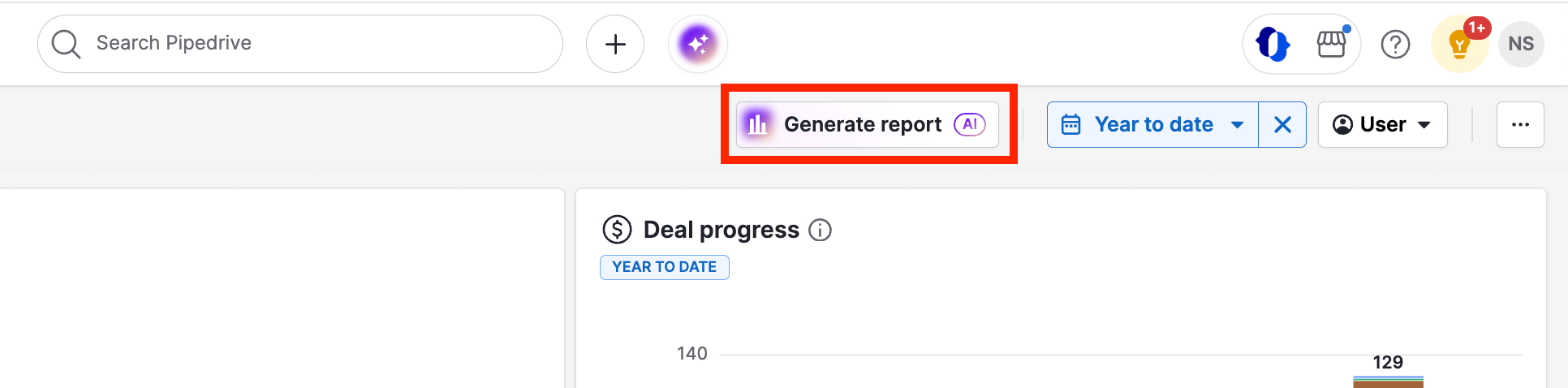
As with everything AI, good prompts are the key. Start with a general request, then adjust the prompt if the generated report isn’t what you meant.
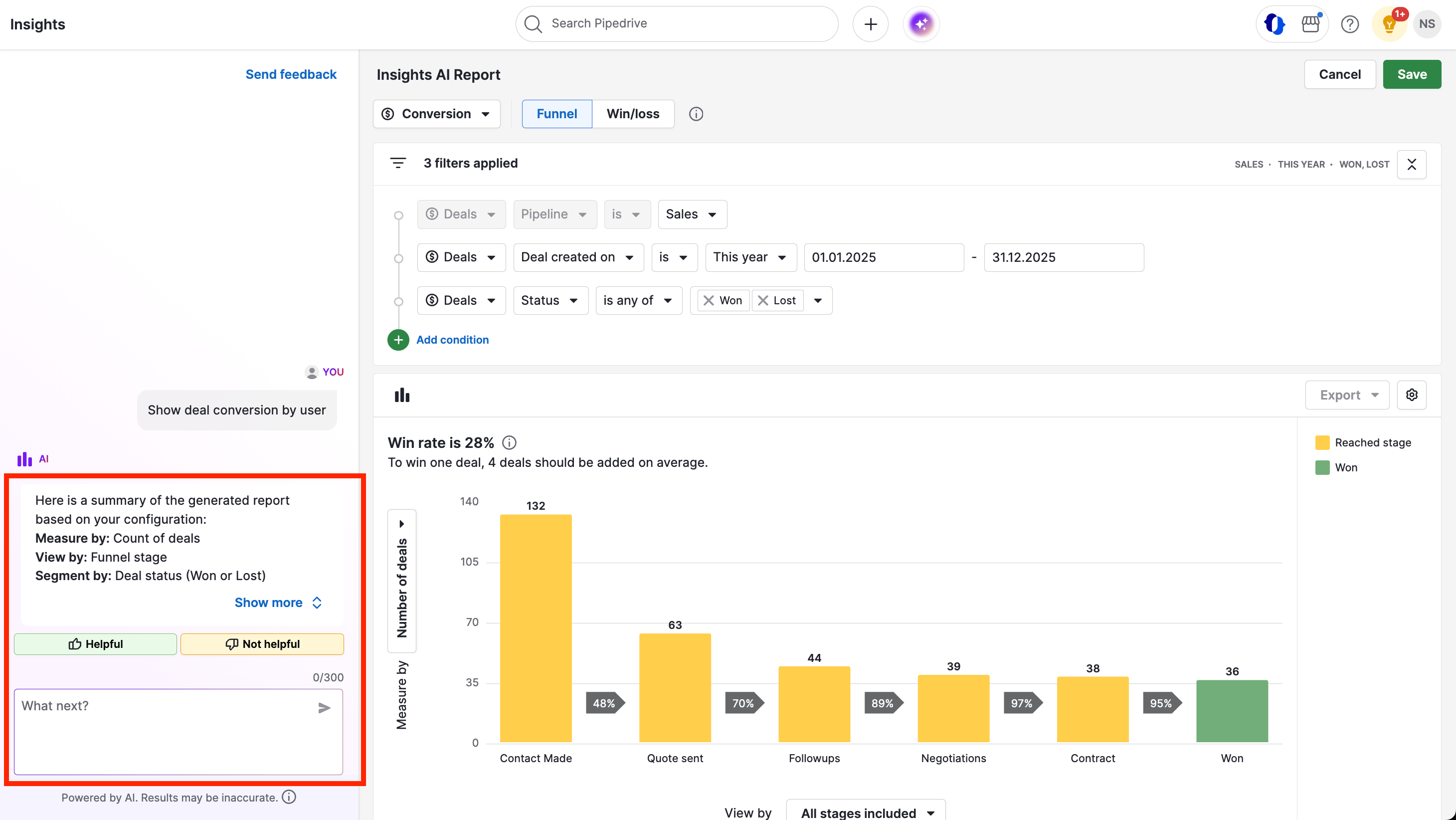
Why Pipedrive AI Reports Can Be Inaccurate (and How to Fix Them)
Even though AI speeds up report creation tremendously, you might still end up with something different from what you actually wanted. Two common reasons:
- Pipedrive’s definitions differ from yours. For example, “deal conversion” in Pipedrive can imply a funnel-style report, while you might mean win/loss performance.
- The AI can’t map your request to your data. Either the data doesn’t exist in the right fields, or your CRM structure makes segmentation impossible.
Fix #1: Use Pipedrive’s language (or switch the report type)
- Use terms the way Pipedrive expects them (e.g., ask for “win/loss ratio by user” instead of “conversion by user”).
- If AI generated the wrong report type, change the report type manually in the report settings.
Fix #2: Get more specific in the prompt
Add context: timeframe, pipeline, stage, owner, and what “success” means. The more precise you are, the closer the report matches your intent.
The harder problem: AI can’t report on messy data
If the AI doesn’t understand what data you’re referring to, the issue is rarely the AI — it’s usually your CRM structure.
Two ways to solve it:
- Use exact field names and objects Pipedrive understands. This requires experience and a bit of “Pipedrive language.”
- Fix your data design. Proper pipelines, activity types, and correctly-typed custom fields are make-or-break for reporting.
A common reporting mistake: wrong field types
It’s almost impossible to segment a report by free-text fields reliably. If you need segmentation, use single-option or multiple-option fields instead.
Quick checklist to make AI reporting work
- Make sure your data is well-defined (fields, values, and naming).
- Ensure stages and activities reflect reality: activities = tasks, stages = milestones/states.
- Write prompts with context: what, where, timeframe, and how to group/segment.
Turn insight into action
AI reports help you see where deals stall, but visibility alone isn’t enough. You still need a follow-up system that turns insight into execution.
This is especially important when reporting highlights stalled deals — missed follow-ups are one of the most common reasons insights fail to turn into revenue.
For example, using Pipedrive’s Follow-Up Filter in the Sales Inbox to catch unanswered emails before deals quietly die.
Want us to fix your Pipedrive reporting setup?
If AI reports feel inconsistent, it usually points to a deeper data-structure issue. We can audit your pipelines, activities, and fields — and make your reporting reliable.
Schedule a call
FAQ: Pipedrive AI Reports
Why does Pipedrive AI sometimes generate inaccurate reports?
In most cases, inaccurate AI reports in Pipedrive Insights are not caused by the AI itself, but by unclear prompts or an inconsistent CRM data structure. If pipelines, stages, activity types, or custom fields are not clearly defined, the AI has no reliable way to interpret what should be measured or how data should be grouped. As a result, the generated report may technically be correct, but misaligned with the question you intended to answer.
How can I improve the accuracy of Pipedrive AI reports?
Start by writing more specific prompts that include timeframe, pipeline, owner, and success criteria. Then review your data structure: use option-type fields instead of free text, and ensure pipelines and stages reflect real business milestones.
Does Pipedrive AI understand custom fields?
Yes, but only if custom fields are configured correctly. Single-option and multiple-option fields work best for segmentation and reporting. Free-text fields are difficult for both AI and manual reports to interpret reliably.
Is Pipedrive AI reporting useful without proper CRM setup?
AI reporting can surface insights quickly, but without a clean data structure its results will be limited. The better your pipelines, activities, and field definitions, the more reliable and actionable AI-generated reports become.