

Can Pipedrive handle group inboxes? Can more than one personal mailbox be used in Pipedrive? How can visibility be restricted? What about email automation?
Emails are a powerful tool in Pipedrive because Pipedrive is a sales CRM and email is crucial in sales.
We will cover the following topics:
- Connecting email mailboxes
- Shared usage of email mailboxes
- Visibility of emails
- Powerful email features
- Automation possibilities
Emails without a calendar are like cereal without milk
Important note beforehand: Calendars and emails go hand in hand. If you bought your email mailboxes from a web host, you must check if you also have a calendar included. Usually, you don’t.
Calendars are always included with Google and Office 365. Exchange Server also offers this function. Web hosting providers usually do not include calendars.
So, if you use regular calendars in Outlook or Google Calendar, or if synchronization is important, it needs to be Office or Google Workspace.
Connecting Email Mailboxes
Up to 5 email accounts can be connected and used simultaneously per user in Pipedrive. The number of parallel accounts usable depends on the purchased plan (Status: January 2026):

The number of available email accounts per user depends on the plan:
- Lite (€24/mo): 1 Mailbox
- Growth (€49/mo): 2 Mailboxes
- Premium (€79/mo): 3 Mailboxes
- Ultimate (€99/mo): 5 Mailboxes
The connection process itself is maximally simple:
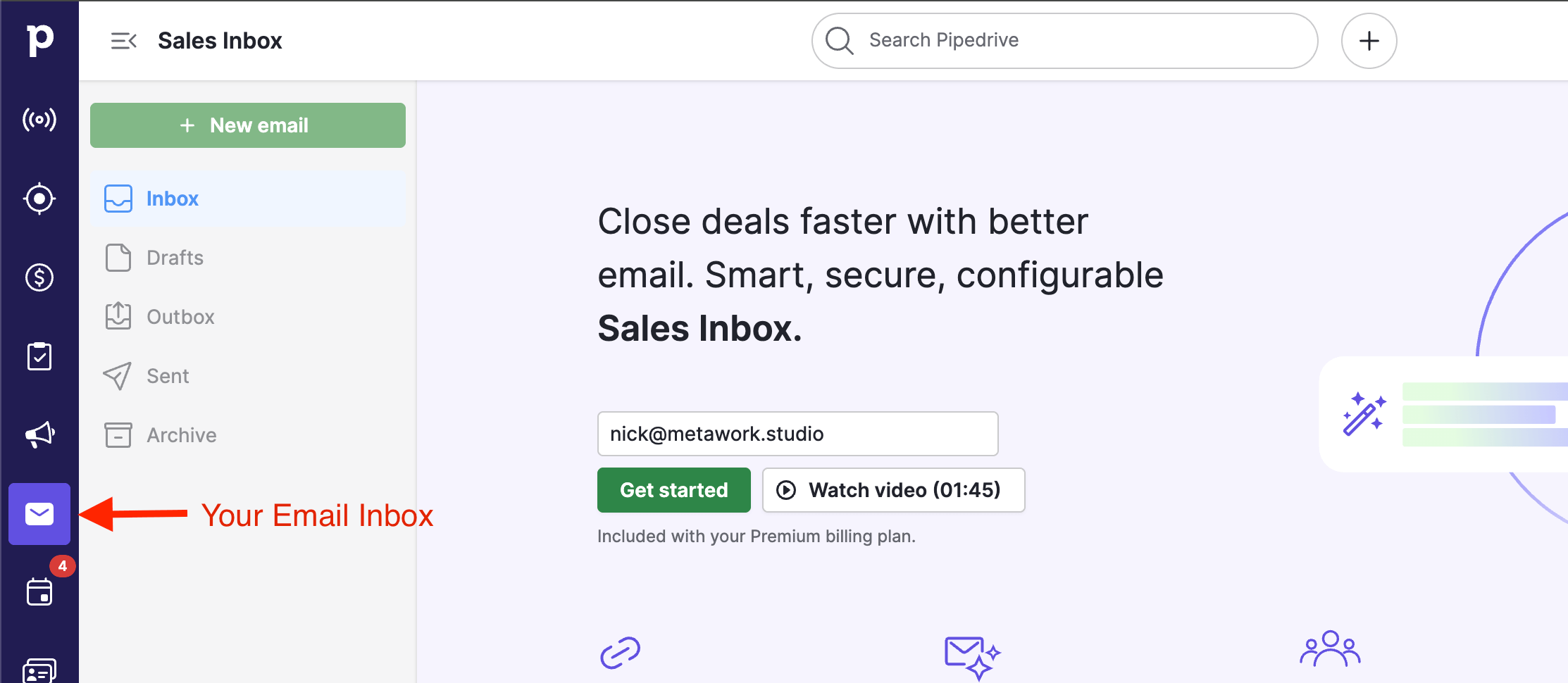
- Go to the Sales Inbox page.
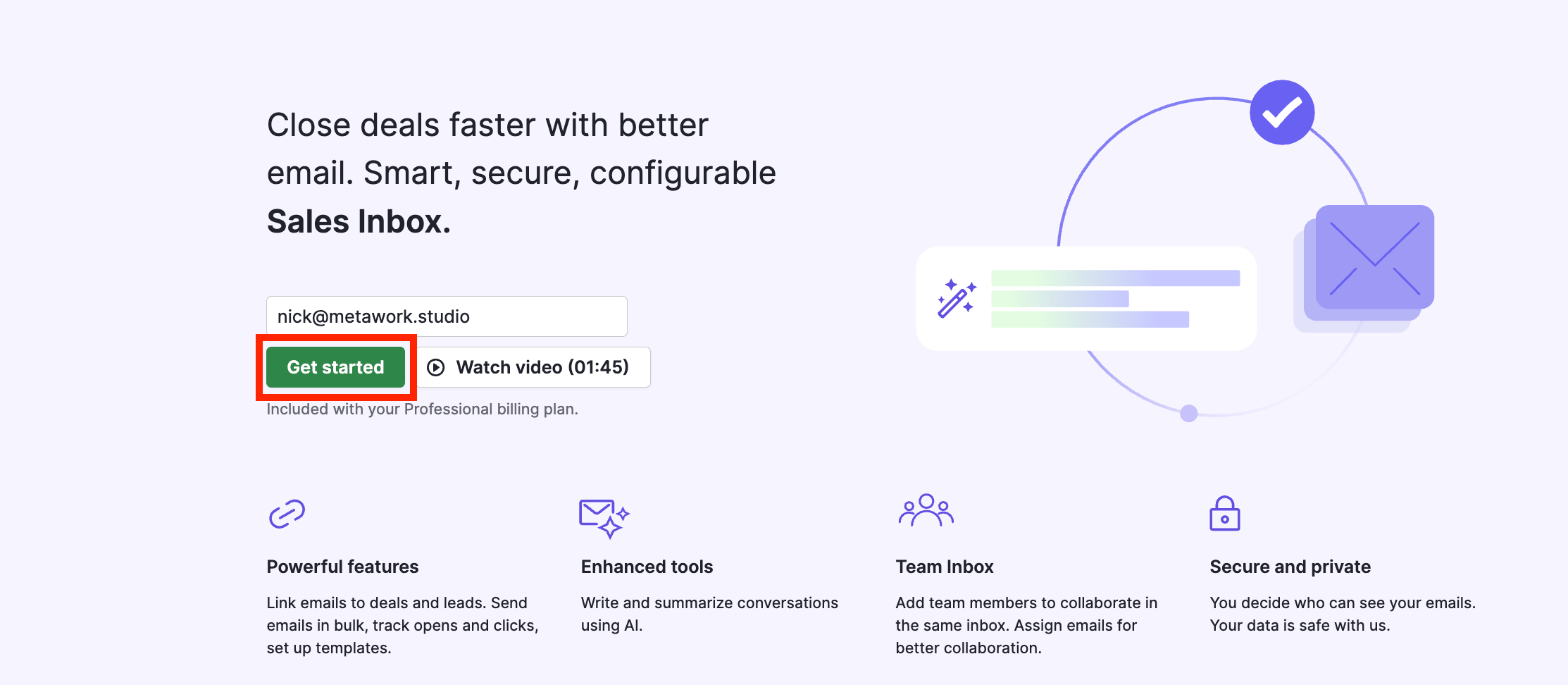
- Click on “Get started.”
- Follow the instructions on the screen.
Google and Microsoft accounts are the easiest. For everything else, IMAP and SMTP settings are required. These can usually be found on a page provided by your hosting provider.
Attention with Microsoft: Under certain circumstances, Pipedrive must be approved in the Microsoft Security Center. You will notice this if a message appears after authentication saying “Pipedrive needs admin approval.” It is best to ask your Admin (or Gemini) where this setting is located. After that, it works.
Team Inboxes
When setting up email accounts, you can choose between a personal and a team mailbox:
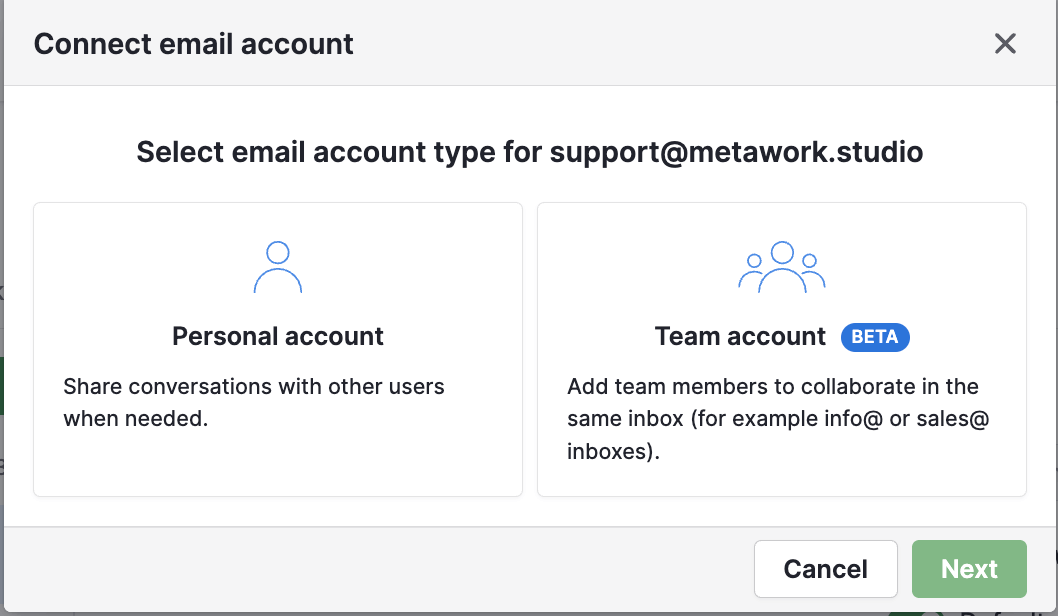
The main difference:
Via a personal account, only you can send, mark emails as private or public, and link them to Leads or Deals.
With team inboxes, an entire team can read, send, link emails, and most importantly, assign them to each other as a “Task.”
Assigning emails is only possible in team inboxes. This feature allows you to assign any email to a specific user.
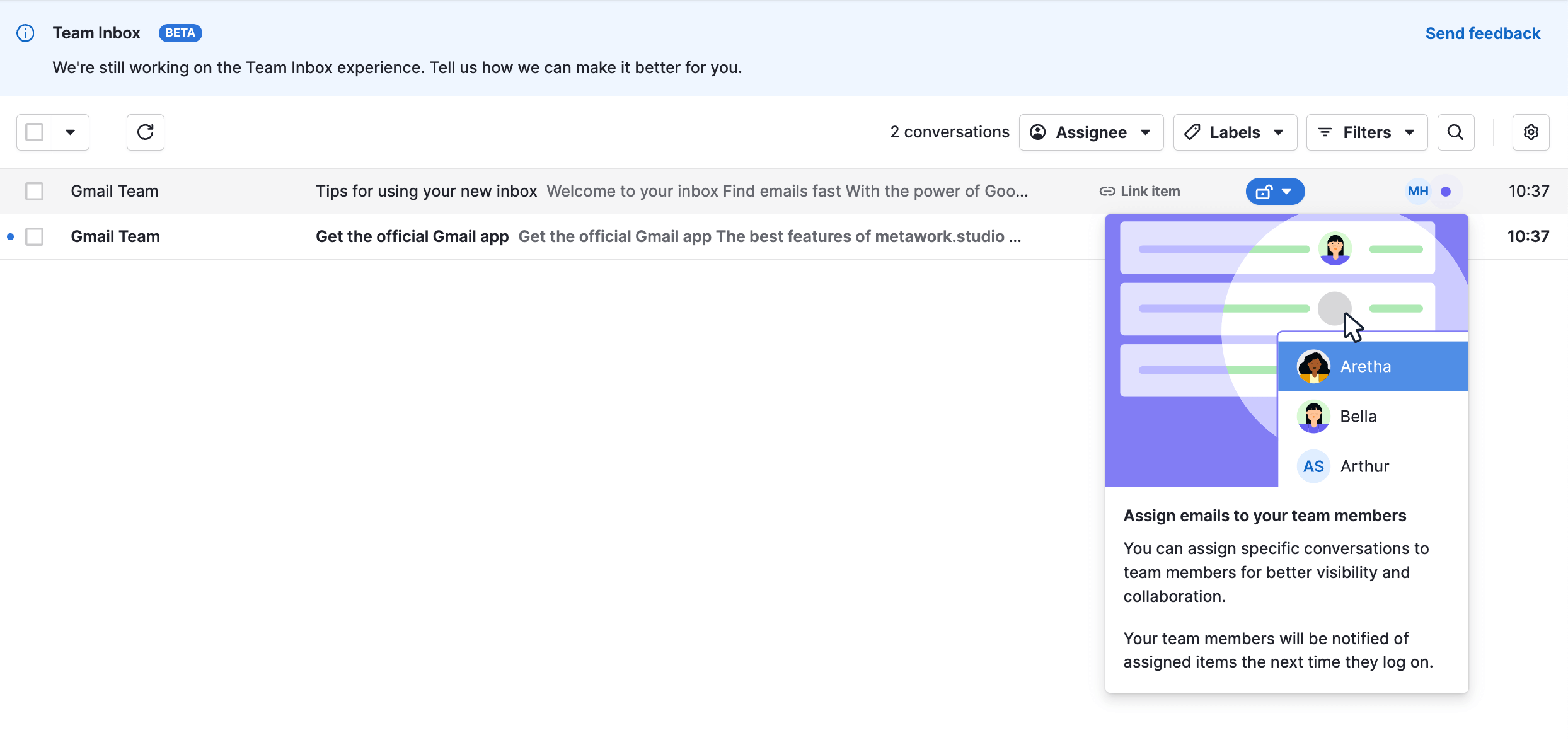
One thing must be noted with team inboxes: it must be a fully functional account.
Team inboxes must be real accounts
Pipedrive only supports fully functional email accounts and not alias/distribution lists (Sammelpostfächer).
What is the difference between full accounts and distribution lists?
A distribution list is a Group in Google Workspace or a Distribution Group in Microsoft. There are no logins for these lists. If you do not have a login for a mailbox, it is a distribution list.
Therefore: Create a real account with the address info@, inbox@, or hello@ and set up forwarding if needed, similar to a distribution address. It functions exactly like a shared inbox, just costs a little money per month and makes integration into Pipedrive possible.
Recommendation: Set up all mailboxes that are to be integrated into the CRM as real accounts with logins at Office / Google.
Visibility of Emails
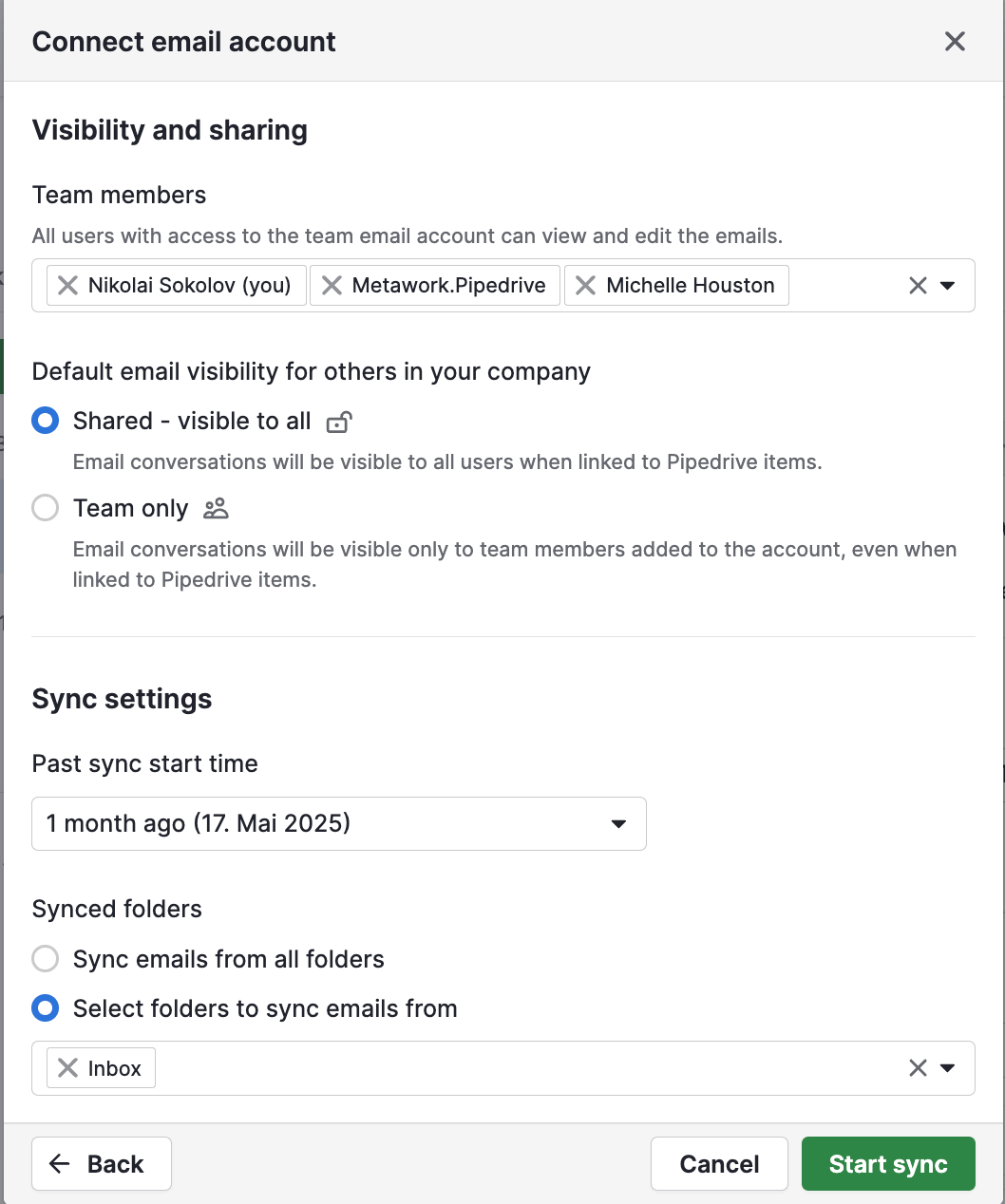
In the Email Sync settings, you can control the visibility of emails. Basically, there are 2 options:
- All emails from your inbox are marked as private by default, and only you can see the email content, as well as the email in the deal history or on the contact page.
- All emails from your inbox are marked as shared by default, so that everyone on the team can see the content if they check the deal history.
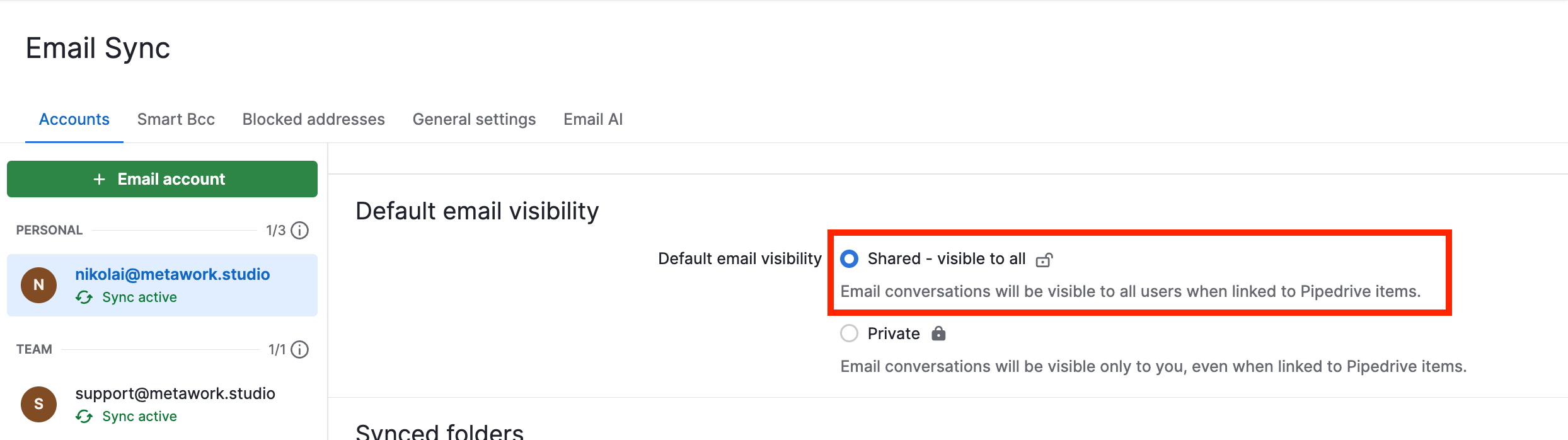
Important: Shared emails are only visible to others if they are linked to existing contacts in Pipedrive. That means, even if an email is marked as shared, but there is no contact in Pipedrive for that email address, other users will never see the email.
Checking if a contact exists in Pipedrive is very simple. Search for the email address in Pipedrive. If a contact is found, they are in Pipedrive. If no contact is found, no one will be able to see the email traffic with this address.
Alternatively, click on the desired email in Sales Inbox and look in the right sidebar to see if contacts were found. If buttons appear to add the email to an existing or new contact, the contact is not in Pipedrive:
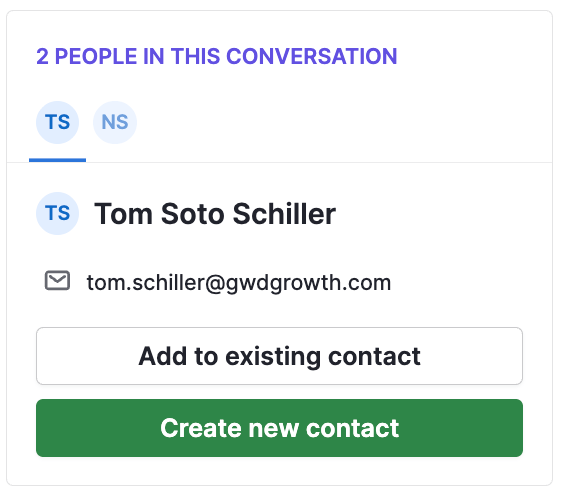
If the name and other contact details appear instead, the contact is in Pipedrive.

Labeling of Emails
Labels for emails simplify the visual search for specific emails and enable fast filtering. These labels are only displayed in the Sales Inbox.
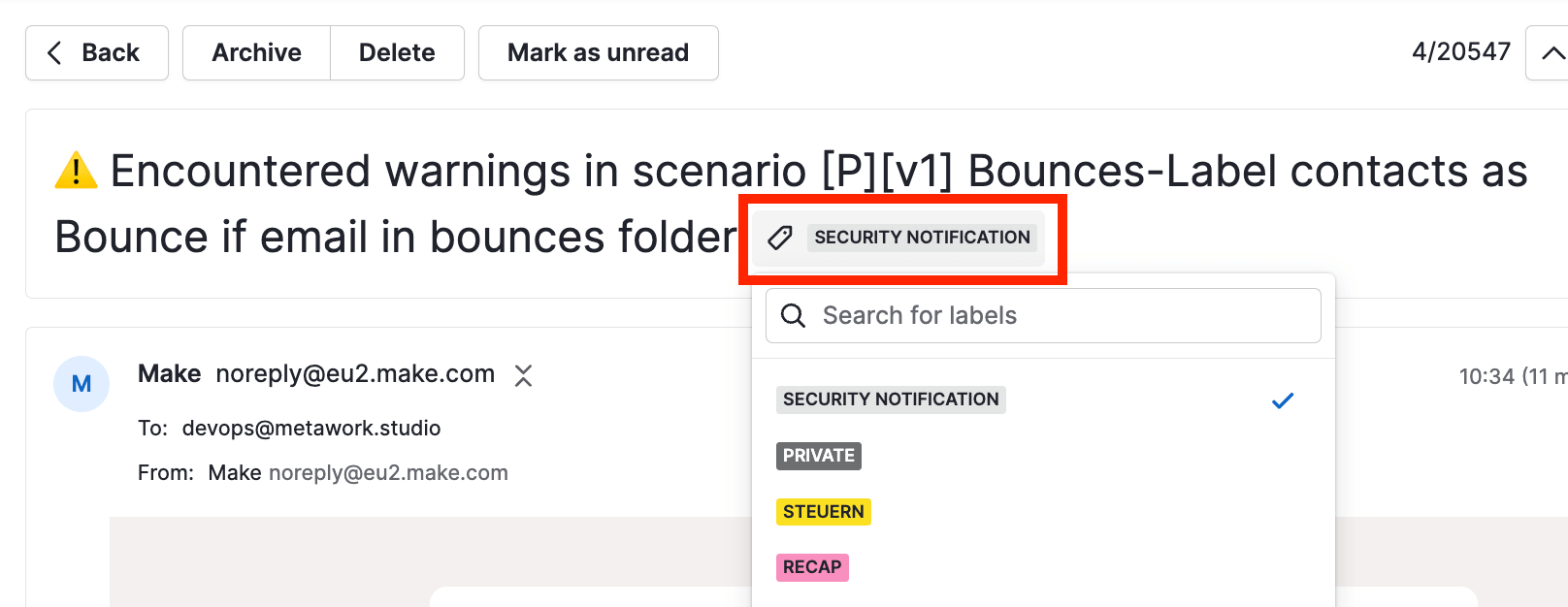
The Idea:
- You go through the list of new emails and mark all emails you need to reply to later (but won’t do right away).
- When you are ready, you filter the Inbox by a label and process the mails.
The same principle can be used for other cases: Support cases, creating Deals or Tasks, etc.
Linking Emails with Contacts, Leads, Deals, and Projects
The Sales Inbox, like everything else in Pipedrive, is optimized for task-driven work. As soon as you click an email in the Inbox, a sidebar appears on the right with a useful overview and quick functions.
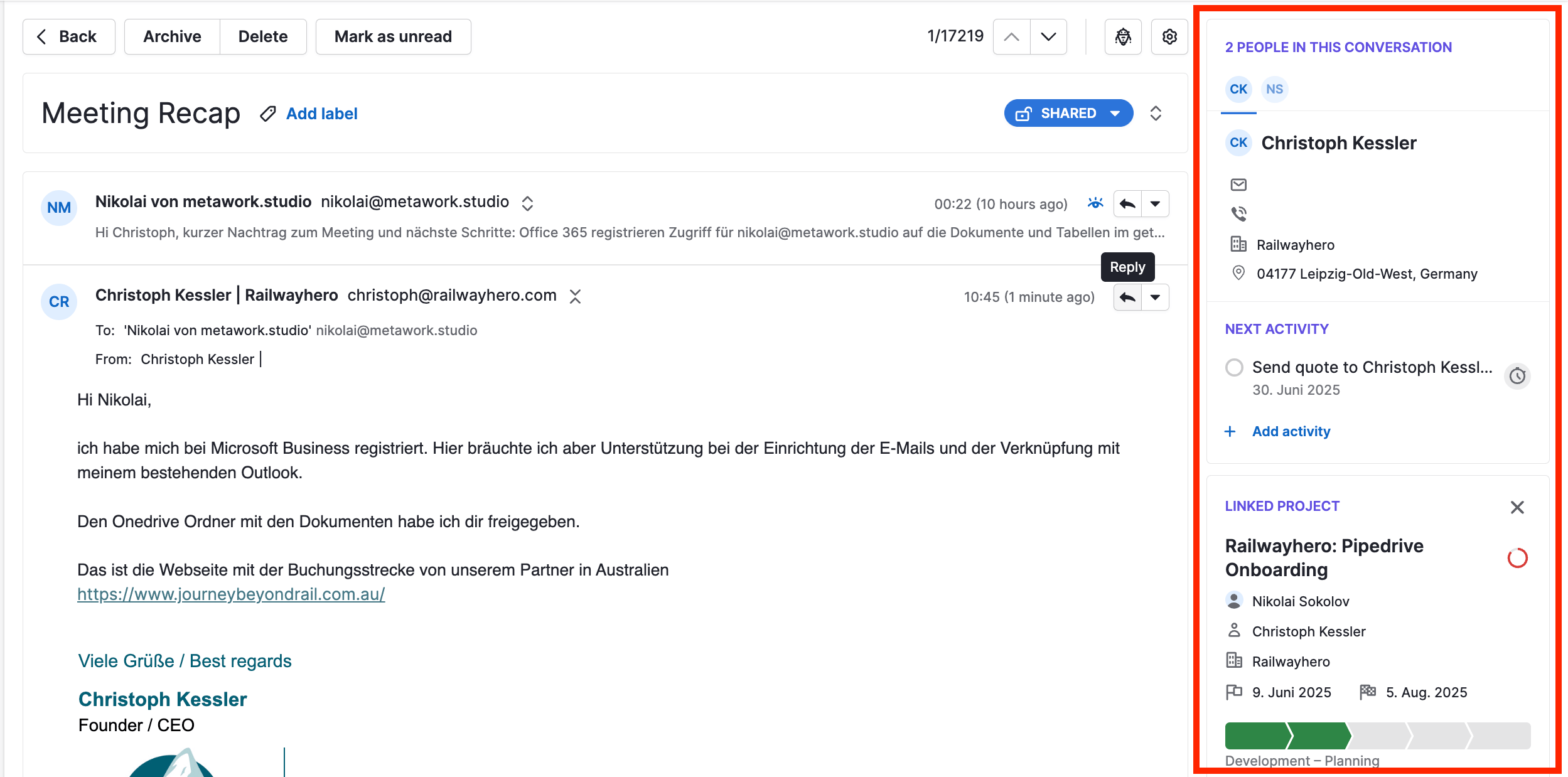
- In the upper part, you see if the sender and people in CC are already linked to contacts. If not, you can create the contact with one click (recommended if the email traffic should be visible in other views).
- If a task exists for the contact, it is displayed. Otherwise, you can quickly create a task (always create follow-up tasks!).
Automation of Emails
Pipedrive distinguishes between 4 types of automated email sending:
- Campaigns (aka Marketing Emails)
- Sequences
- Regular Emails (automated sending via Workflows)
- Group Emailing (Bulk sending)
Campaigns
TL;DR: Nope. Campaigns - hard pass in most cases.
Campaigns offer additional features like bounce detection, pretty email designs, and mass sending of thousands of emails simultaneously. The limitation here is the Double Opt-In, which must be confirmed manually.
Once again: Double Opt-In is still a manual process in Pipedrive to this day. You also cannot design an online form that automatically triggers the Double Opt-In with a confirmation email.
Currently, there is also no way to brand Double Opt-In emails, change the wording, or automate the Double Opt-In process, making Campaigns ill-suited for large lists and complex workflows.
Campaigns is best for simple newsletters and manually qualified and confirmed contacts. The funnel design is less mature than comparable apps like ActiveCampaign or Mailchimp.
Conclusion: Campaigns is suitable for very simple use cases like regular newsletters to your existing customers.
Sequences
Sequences are a new feature in Pipedrive and are ideal for outreach cadences. A cadence is usually a series of emails, tasks, and contact attempts via multiple channels:
- Send the first email with the service description.
- Create a reminder to call in 2 days.
- Send another email with a meeting proposal 4 days later.
- Create a reminder to contact the lead via LinkedIn.
- Send another reminder email in a week.
- Create a reminder to message the lead via WhatsApp.
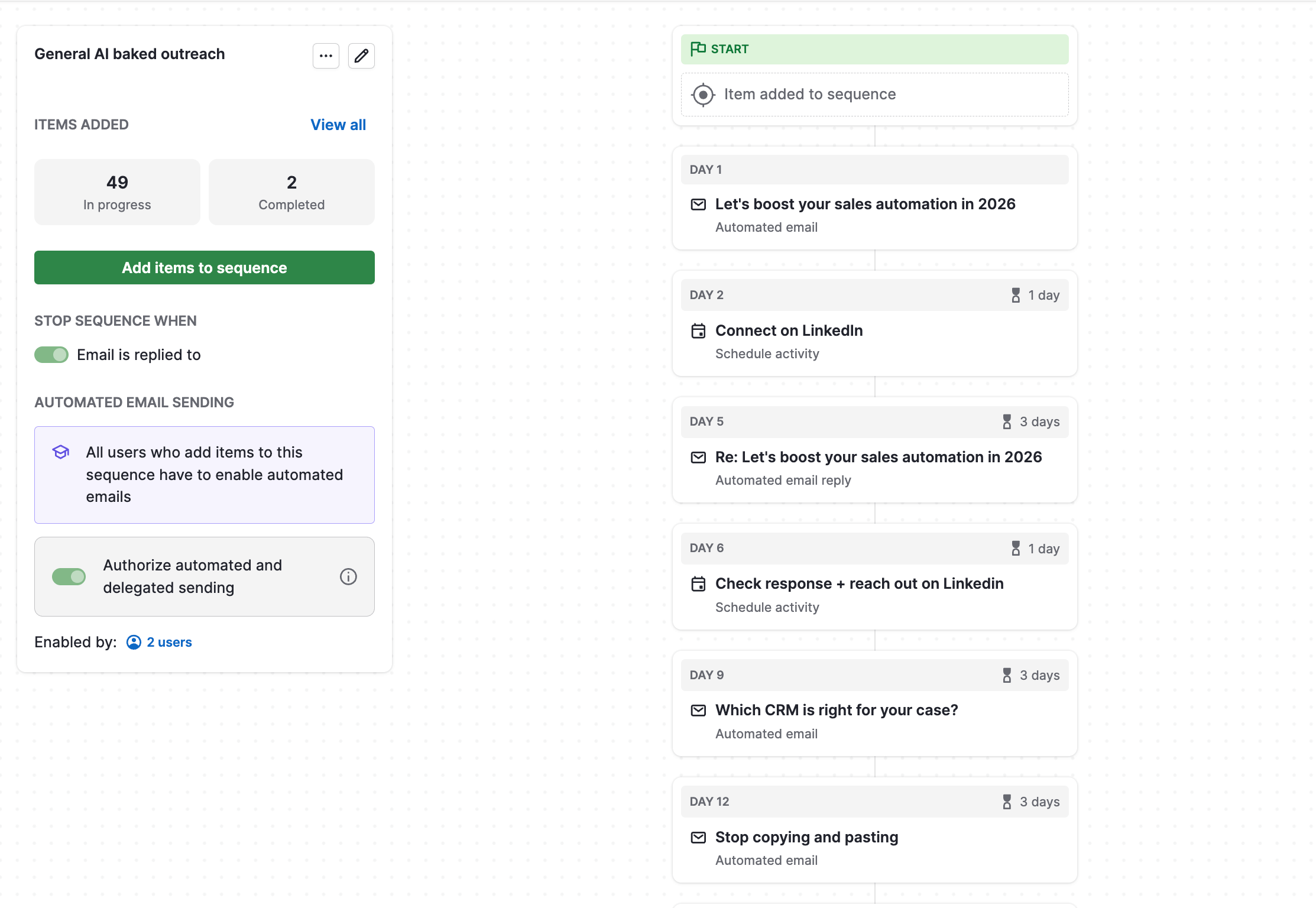
Unlike Campaigns, sequences are triggered manually for Leads or Deals. The user selects which sequence should run. Similar to Workflow Automation, rules can be set for when the sequence should stop. There is a setting to stop sequences upon receiving a reply, which is actually desired in most cases.
The most important thing: Sequences can be sent from the respective user’s inbox, which is very useful. In Workflow Automations, this is a hassle, but with Sequences, it’s no problem at all. This video explains the maintenance difference between Sequences and Workflows:
Regular Emails
Regular emails have no automatic bounce detection and stricter limitations on simultaneous sending from Workflow Automation. The background is the blacklisting of mail domains that send too many mails at once and are therefore quickly classified as spam.
However, these are truly regular emails, sent quite normally via your mail provider from your mailbox.
Nevertheless, regular mails can also be sent from Workflows, i.e., automatically.
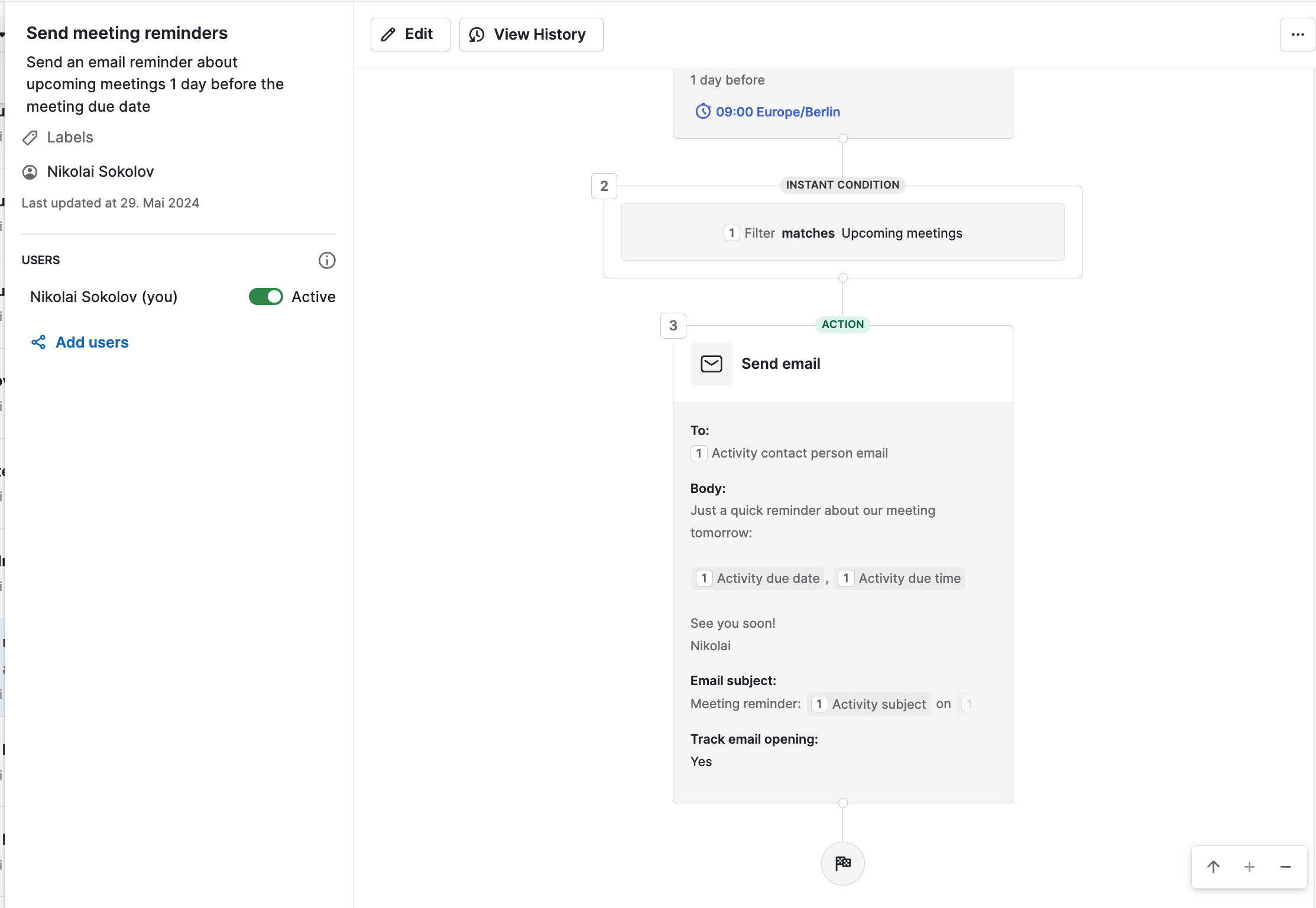
Important limitations when sending via Workflow Automations:
- If you activate a workflow with email sending, your account is used, regardless of whose Deals or Contacts enter the workflow.
- If the email should go out from the sales representative’s mailbox, the sales rep must duplicate the workflow and activate it for themselves.
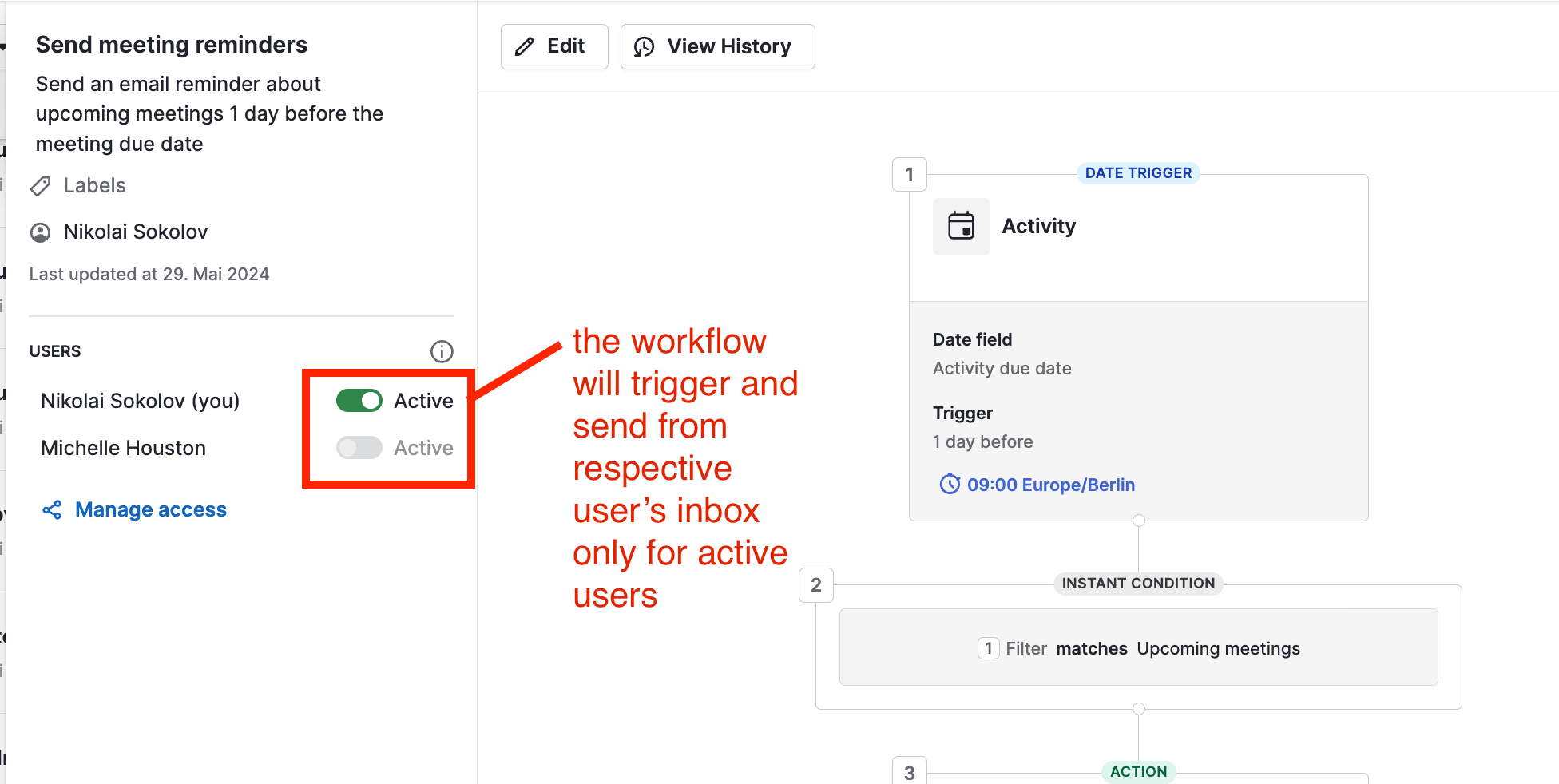
An exception is date-based workflows. These send from the mailbox of the respective user, but each user must explicitly activate the workflow for themselves.
Group Emailing (Bulk Sending)
The last option is bulk sending. This is great for quickly sending a message to a group of customers or leads. Sending takes a while (approx. 2-3 emails per minute) but runs in the background and allows users to continue working normally with Pipedrive.
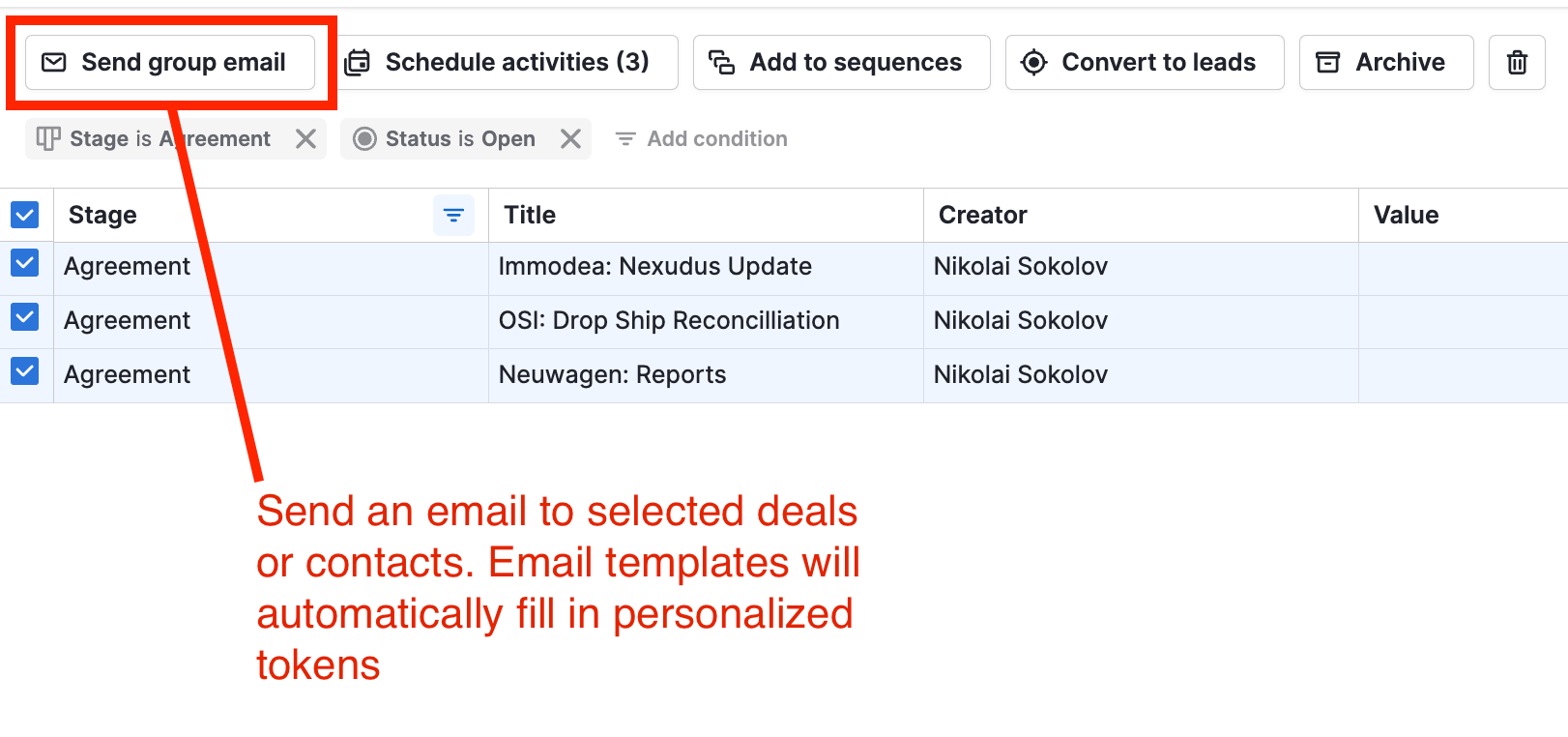
This mode works best together with email templates. It makes sense to create email templates for common messages or outreach anyway. Then test with a control group using bulk sending before moving to fully automated sending.
For Advanced Users: Automated Sending with Make.com
There are cases that cannot be implemented in Pipedrive, even though email automation is quite advanced.
A common example is sending dynamically generated documents, e.g., when someone fills out a form on the website, which creates a preliminary estimate as a PDF and attaches it to the mail. Here is a scenario:
- User fills out company details on the website.
- These details are evaluated in the background.
- The evaluation is nicely packaged into a PDF.
- And sent as an attachment to an email.
Pipedrive offers no tools for this—you cannot dynamically attach a file to an email and send it automatically.
Make.com can be used for this:
- Form data is intercepted and sent to an Excel sheet.
- Further values are calculated in Excel using formulas.
- Values from result fields are grabbed and packed into a Word document.
- Subsequently, a PDF is generated.
- The PDF attachment is appended to an email and sent to the contact’s email address.
- Finally, the mail is attached to the contact in Pipedrive.
We have implemented such workflows for MIND and Liquor License.
Pipedrive vs HubSpot: Comparison of Email Features
Let’s do a quick comparison of email functionality between HubSpot and Pipedrive.
No Inbox in HubSpot
In HubSpot, there is no analog to Sales Inbox. There are group mailboxes, which are super useful and implemented well. Compared to the group inbox in Pipedrive, HubSpot has a bit more to offer.
But there is no possibility to see your personal inbox within HubSpot.
As a solution, HubSpot offers an extension for Outlook and Gmail, which is simply not the same as the inbox inside Pipedrive.
No Retroactive Synchronization of Emails in HubSpot
The most important difference between Pipedrive and HubSpot is that HubSpot cannot sync historical email traffic. If you start with HubSpot and want your previous email traffic with customers and leads to be in the CRM, it becomes very expensive or impossible via workarounds.
In Pipedrive, during email connection setup, you activate how far back emails should be synchronized. Up to 2 years works out of the box. Significantly further back is possible via Pipedrive’s support. All emails from these years are imported and automatically linked to existing contacts in Pipedrive.
No Personal Emails from Workflows in HubSpot
In HubSpot Workflow Automations, Marketing Emails are sent by default, which are technically different from ordinary emails from personal mailboxes:
- Marketing emails are sent via HubSpot’s email service, not from your mailboxes.
- Marketing emails are explicitly marked as such and contain a forced Unsubscribe link setting.
- Marketing emails are tracked and displayed differently—e.g., you do not see the content of the email in the history log.
- Marketing emails can only be sent to Marketing Contacts, which counts against the number of paid marketing contacts in Marketing Hub.
The feature for regular emails in workflows is called the Transactional Emails Addon in HubSpot and costs €600 extra per month.
In contrast, emails in Pipedrive go out from the corresponding mailboxes as regular emails. You will find them in your sent items in Outlook or Google Mail, and they are technically absolutely standard emails.
Emails in Pipedrive = very ordinary emails. Emails in HubSpot = something completely different.
Sequences in HubSpot are more powerful
In both CRMs, there are sequences that function very similarly. In HubSpot, they have more “oomph”: more statistics, more setting options.
Pipedrive follows the “less is more” approach and focuses on ease of use. Ultimately, a sequence is created faster than in HubSpot.
Bulk Sending only works in Pipedrive
In Pipedrive, it is a matter of 3 clicks to send an email to 100 people. Select > Click Bulk Send > Check and Send.
In HubSpot, this is not possible in this manner. The workarounds are either Sequences or Workflows with transactional mails or marketing mails. So simply not the same.
Linking Emails with Deals and Projects
HubSpot has a more flexible model for linking “whatever to whatever,” including emails. But since there is no inbox, you cannot link 20 emails to a specific deal with one click, as is possible in Pipedrive.
While it is a rare use case, (re)linking emails is significantly easier in Pipedrive.
Summary
Emails are covered excellently in Pipedrive. More than that: Pipedrive rocks email automation. In HubSpot, comparable features cost many hundreds of Euros extra per month. From multiple mailboxes per user, to team inboxes, to automated sending, there are sufficient features to effectively engage leads and customers with emails.
The number of possible mailboxes depends heavily on the subscription. If many mailboxes need to be integrated, the Power plan is recommended.
Visibility is well-regulated and allows granular sharing of emails. However, the setting “visible to all” is recommended. It is better to hide specific emails only when absolutely necessary.
Do you have further questions about emails in Pipedrive?
Let's talk