.svg)
.svg)


.svg)

In this post, we’ll cover 3 ways to import data in Pipedrive and explain the benefits and shortcomings of each.
You’ve got 3 options to import data in Pipedrive:
- Easy to use migration tool Import2, which supports 30+ CRMs and offers an easy to use interface with an almost 1-click-to-migrate experience. Best if you’re migrating from one of the supported CRMs.
- Import from sheets, which is the default option. It offers high flexibility but also involves planning and requires deeper understanding of data. Still does not support projects as of 2026.
- API, which allows the deepest level of integration and highest flexibility, but requires advanced programming skills
Import2: Easiest way to migrate from another CRM
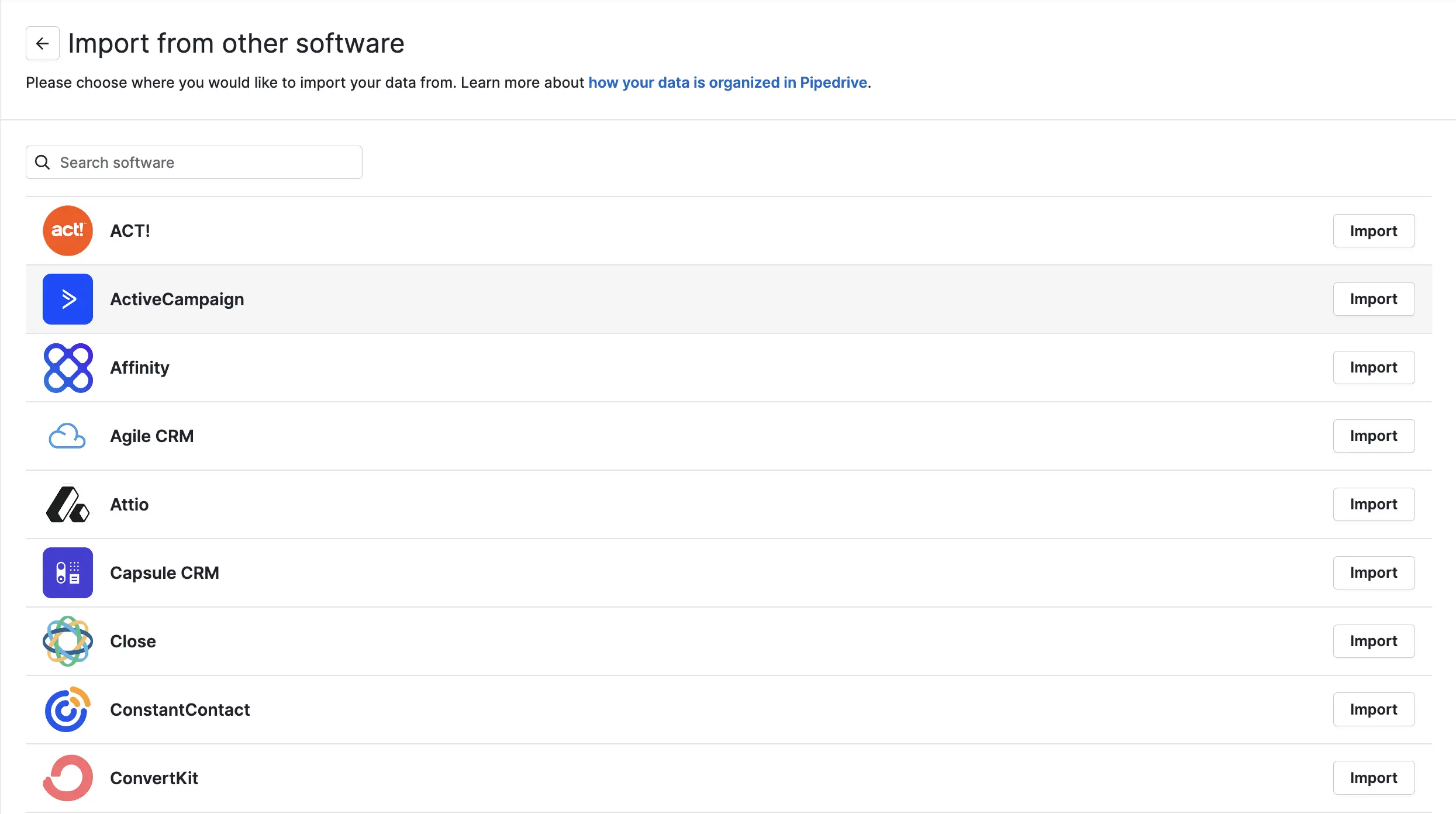
If you’re migrating from another CRM, definitely see if that CRM is supported by the migration tool. Simply login in Pipedrive and navigate to Import from other software page . If your app is listed - definitely go that route. There’s an unroll option and at the very least, the tool will help you to map and create necessary custom fields quickly.
Limitations of import2 way
The most important limitation is the amount of data the app will migrate for free. It will definitely tell you if you’re above the threshold, which is 1.000.000 entries in total as of 2026.
Another important caveat: there will be no report on what data exactly was migrated. Definitely double check wether everything you require got carried over.
Importing from sheets
The default option got a few useful updates recently, like AI mapping assistant, assignment of default values and adding options for multiselect / single select fields automatically.
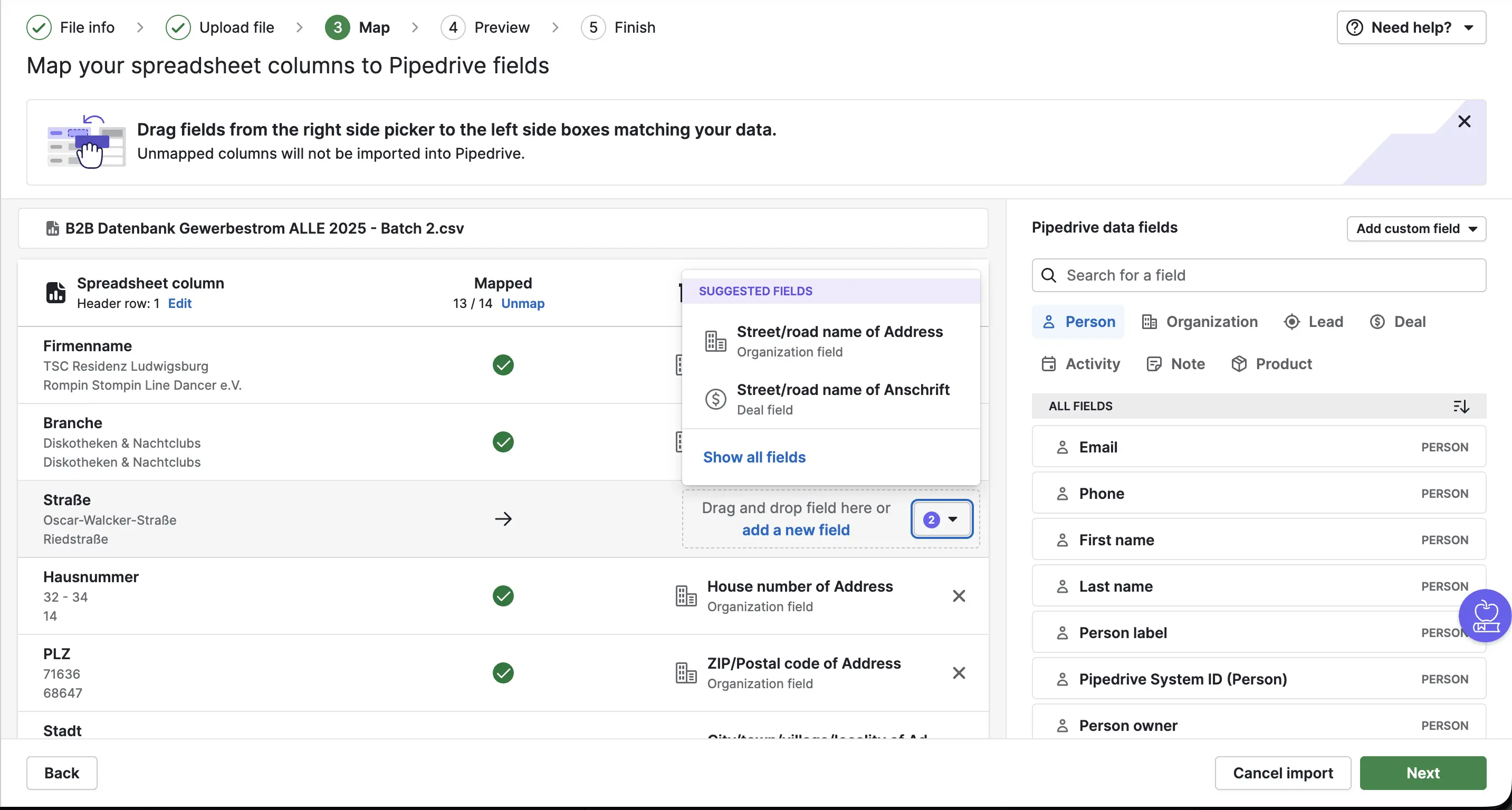
Unlike HubSpot, Pipedrive supports adding more than 2 objects at once, allowing for very complex imports of, say, contacts, companies, deals, notes and activities all at once.
The downside is that this type of import requires a deeper understanding of data models and how that multi-object import works. If you do have that deeper understanding, the tool becomes a strong benefit and allows more nuanced imports.
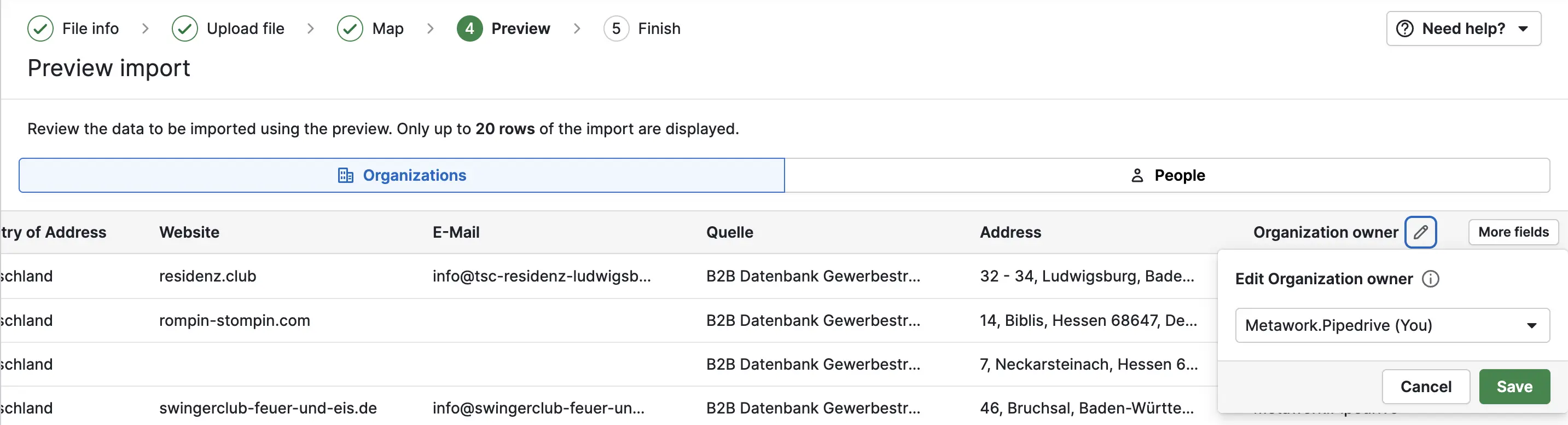
Sheet imports also allow updates and is a very simple way to update a batch of records with a range of values, which we explored in this post.
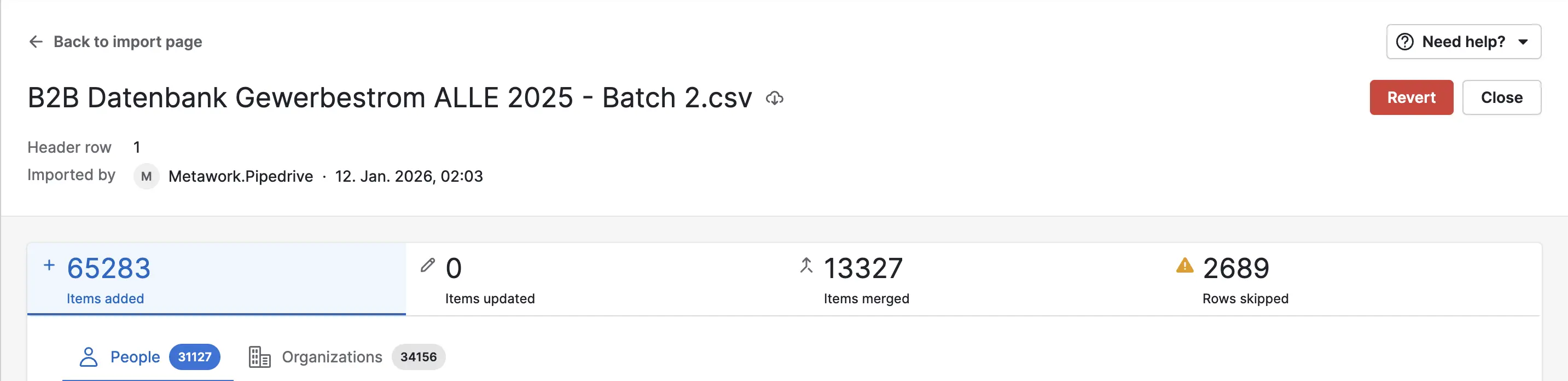
Previous imports can be undone for 7 days and the history of imports is kept for 30 days.
Limitations of sheet importer
There are samples for what an import file should contain within the import wizard in pipedrive. Here’s our additional checklist to prevent a back and forth before importing data:
- Pipedrive won’t allow importing a person without a name. If names are missing, copy email address as a name into a name column or use something like “unknown”.
- Make sure you have a column with deal titles if you’re importing deals. Same goes for leads.
- Don’t bother importing products or deal line items. This will populate your product catalog with duplicates. Sheet importer doesn’t support matching of products and handles each line item as a new product. Products should be either imported through import2 or API.
- We suggest adding creation dates to everything you import: contacts, companies, deals, etc. This will ensure that your history is preserved instead of having everything registered in the month of import.
- Since Pipedrive doesn’t support activity outcomes, it is best to add outcomes in activity titles. I.e. Call - Missed or Meeting - No Show.
- Make sure to add activity types before running the import to cover calls, meetings, tasks, text messages or linkedin connections in one go.
- Always import a smaller sample first to speed up debugging, checking and unrolling
API import and sync
The most powerful and flexible way to import or sync data is definitely through the API, which has been Pipedrive’s strongest asset since day one.
API usage requires the highest level of data understanding, as well as basic programming skills, but also offers the most flexible way to sync data.
Since API automatically involves programming, it should be used only on massive migrations with millions of entries or ongoing data sync.
API is also the only way to import or create advanced features in Pipedrive, like projects, filters or users. It allows proper matching of products and therefore very complex and advanced syncing of deals.
Final Thoughts
If you’re switching from another CRM, always check the Import Tool first. It might save you many hours you’d otherwise sink into importing from sheets.
If your app is not supported or the original data is a sheet in the first place, import from sheet option will be your go to. It is still very intuitive and less demanding than working with the API or make.com/zapier.
API is only for advanced, regular syncs or extremely large migrations-
Finally, if you find yourself struggling with the imports or need to import data from an app not supported at all: give us call, we did it all.
.svg)