.svg)
.svg)


.svg)

A new feature in Pipedrive simplified user onboarding and common actions when someone leaves the company:
- reassign items to someone else
- remove unused Pipedrive seats
Automated item reassignment:
Previously, reassigning deals, contacts, leads, and activities from a departing user required filtering through each module separately, selecting items in bulk, and changing ownership manually—time-consuming and error-prone.
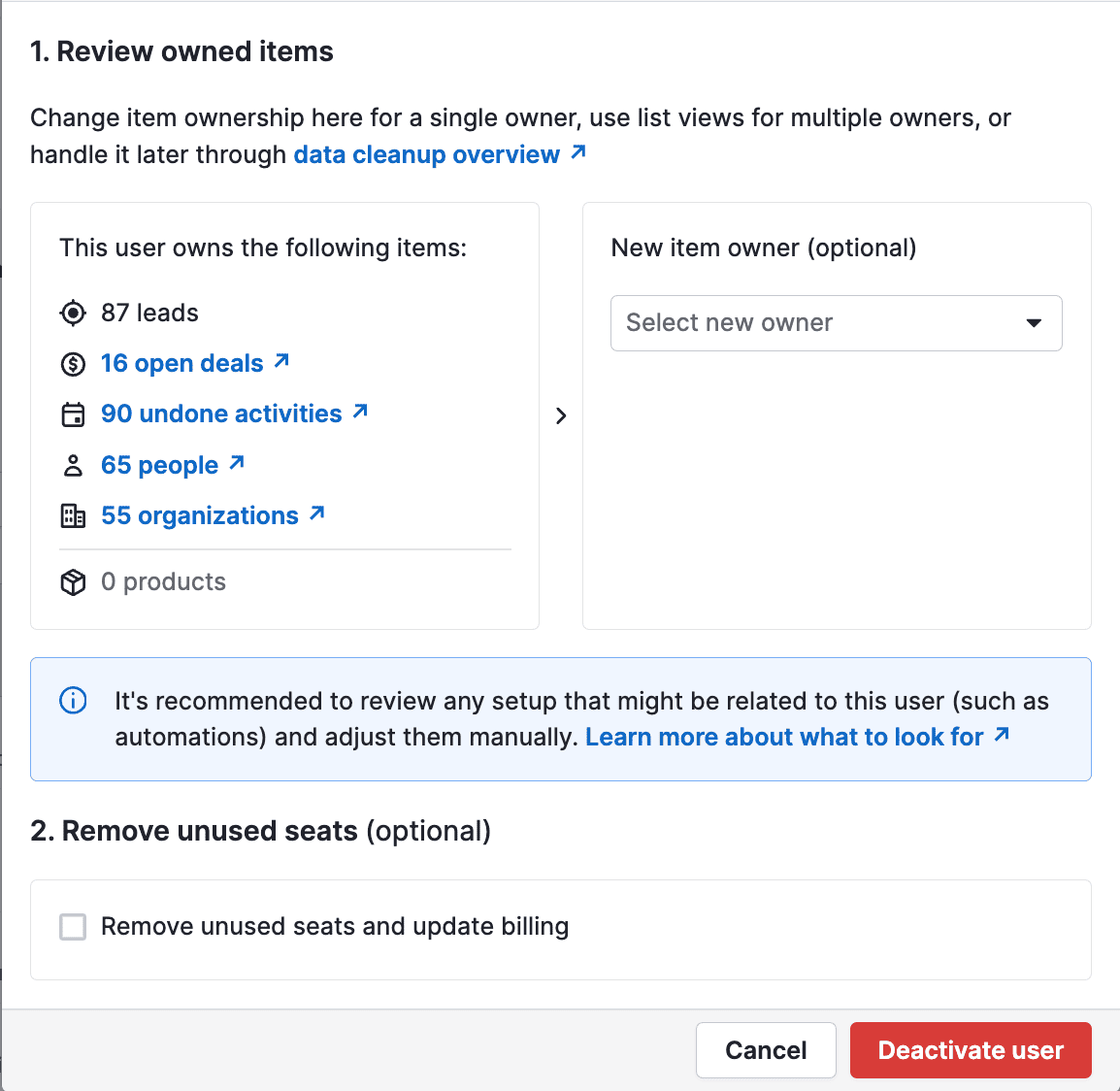
Now, when you deactivate a user in Pipedrive, the system presents all their owned items in one interface so you can reassign everything to another team member with a single click.
One-click seat removal: the option to remove unused seat is another checkbox on the same screen
Where to find the user deactivation option in Pipedrive
Path: Settings → Manage Users → Users and Access → Deactivate user
How to deactivate a user in Pipedrive using Quick Actions
Prerequisites: Make sure you have admin access (only Pipedrive administrators can deactivate users), decide who should inherit the user's items, and notify stakeholders if the user owns key deals, pipelines, dashboards, or automations.
- Go to Settings → Manage Users → Users and Access.
- Find the user you want to deactivate.
- Click the ... menu next to their name.
- Select Deactivate.
- In the Quick Actions screen, review the summary of owned items (deals, contacts, leads, activities), select the team member who should receive these items, and choose whether to check Remove unused seat.
- Click Deactivate user to confirm.
- If you removed the seat, complete the billing checkout (if prompted).
What gets reassigned: deals, leads, contacts, and activities owned by the deactivated user can be reassigned to a new owner from the Quick Actions screen.
Pro tip: If you're replacing the user with a new hire immediately, consider keeping the seat to avoid unnecessary billing transactions.
Pipedrive deactivated user cleanup: what you still need to manage manually
Quick Actions handles core ownership, but several elements still require manual review. Overlooking these can break workflows, clutter your account, or disrupt scheduling. Here's what we recommend checking every time you deactivate a user in Pipedrive.
Filters
The issue: Private and shared filters created by deactivated users can remain in your account indefinitely, creating "filter bloat" and cluttering the interface.
Best practice: Delete filters created by deactivated users rather than reassigning them. Personal filters rarely transfer well, and unused filters can push you toward platform limits over time.
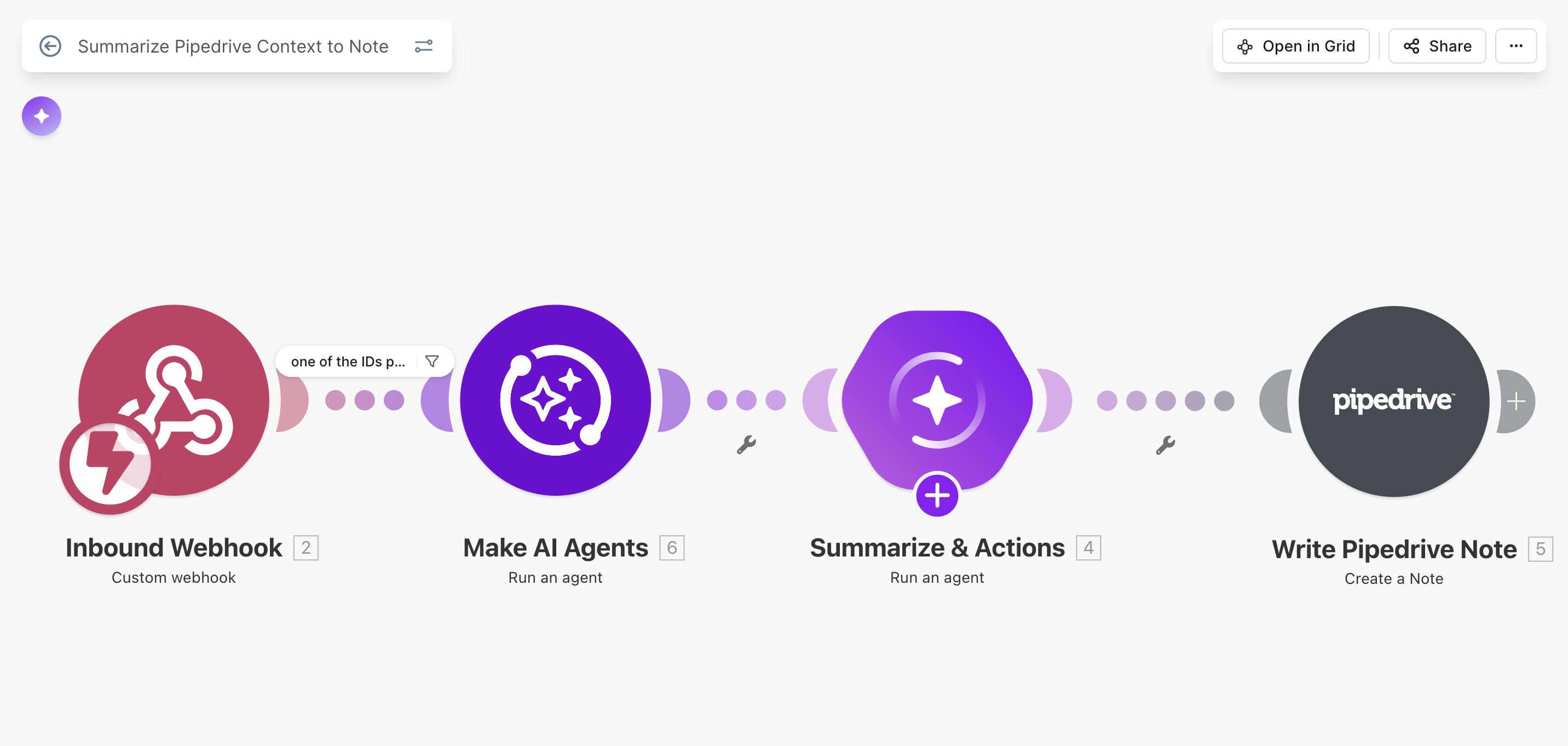
This is tedious through the UI. A much faster way is to let your admin handle this through API / make.com.
Workflows
The issue: Workflows may continue running but become unclear to maintain after a user leaves. Ownership confusion leads to broken automations and duplication.
Best practice: Reassign workflows to the same owner who inherits the user's deals/leads, and remove redundant automations.
- Go to Automations → Workflows.
- Filter by workflows created by the deactivated user.
- Review each workflow: keep & reassign, or delete if outdated/duplicate.
- Document the purpose of reassigned workflows for the new owner.
⚠️ Warning: If a workflow trigger is set to "Triggered by [specific user]" and that user is deactivated, the automation can stop working. Always review trigger settings during reassignment.
Email Templates
The issue: Email templates can't be reassigned. Valuable templates should be shared under an ever-present account.
Reports and dashboards
The issue: Private reports from deactivated users can remain, counting toward plan limits and cluttering Insights.
Best practice: Delete private reports and consolidate into team-wide dashboards where possible. This keeps reporting maintainable and reduces duplication.
- Go to Insights → Reports.
- Filter for reports created by the deactivated user.
- Delete private reports (prefer shared team dashboards).
- Reassign only truly necessary shared reports to a manager/team lead.
Meeting Links
The issue: Scheduler meeting links are tied to individual user accounts and can't be reassigned. When a user is deactivated, meeting links can break and disrupt booking flows.
- Find where meeting links are used (signatures, website pages, templates, campaigns, social profiles).
- Create replacement meeting links under the inheriting user.
- Update all external references.
- Test the booking flow before deactivation.
Pipedrive user management best practices (enterprise checklist)
For teams managing 20+ Pipedrive users, process beats memory. A standardized approach prevents ownership gaps and reporting chaos.
Create a standardized offboarding checklist:
- ✅ Quick Actions reassignment completed
- ✅ Unused seat removed (or documented if held for replacement)
- ✅ Filters reviewed and deleted
- ✅ Workflows reassigned and tested
- ✅ Email templates recreated under active users
- ✅ Reports/dashboards consolidated or deleted
- ✅ Meeting links replaced and external references updated
- ✅ Integrations access reviewed (email sync, Slack, Zapier, etc.)
- ✅ Team notified of reassignment
Run quarterly user audits: Review active users, seat utilization, critical ownership, filter bloat, and report limits before they become a problem. Between audits, use Pipedrive Pulse to monitor team activity and deal ownership in real time.
Automate where possible: Notify managers when users are deactivated or seat count changes, connect HR offboarding triggers where relevant, and use the Pipedrive API for monthly user activity reporting.
Common mistakes when deactivating users in Pipedrive
These are the most common Pipedrive deactivation mistakes we see when teams deactivate users without a structured offboarding process. In practice, these mistakes lead to broken workflows, lost ownership visibility, unnecessary billing, and reporting inconsistencies.
Mistake #1: Forgetting to remove unused seats
One of the most common Pipedrive deactivation mistakes is forgetting to remove an unused seat in Pipedrive. Deactivating a user alone does not always stop billing, which often results in paying for inactive users.
Fix: Always use the Remove unused seat in Pipedrive option during user deactivation unless you are replacing the user immediately. This keeps billing clean and prevents unnecessary subscription costs.
Mistake #2: Reassigning everything without review
Automatically reassigning all deals, leads, and contacts without reviewing their status creates clutter. Inactive deals, outdated contacts, and irrelevant records end up polluting pipelines and dashboards.
Fix: Review what is still active before reassignment. Archive or close dead deals first, then reassign only relevant records to avoid overwhelming the new owner and skewing reports.
Mistake #3: Ignoring integration access
User deactivation in Pipedrive does not always revoke access to connected tools such as email sync, Slack, Zapier, or other third-party integrations. This can cause automation errors and data sync issues.
Fix: As part of the offboarding process, review and revoke access to all connected integrations associated with the deactivated user to prevent broken syncs and security risks.
Mistake #4: Not communicating with the team
Deactivating a user without informing stakeholders often leads to confusion. Team members may rely on filters, workflows, reports, or meeting links created by the deactivated user without realizing they have changed ownership.
Fix: Notify relevant stakeholders before deactivation and clearly communicate who inherited deals, workflows, reports, and ongoing responsibilities.
Mistake #5: Skipping documentation
Without proper documentation, reassigned workflows and dashboards quickly become “mystery assets.” Over time, teams lose context on why certain automations exist or who should maintain them.
Fix: Document the purpose and new owner of workflows, reports, and dashboards after reassignment. This ensures long-term maintainability and avoids repeated cleanups in the future.
Pipedrive user offboarding at scale: operational risks (10+ users)
If you manage more than 10–15 users in Pipedrive, user deactivation stops being a simple admin task and becomes a recurring operational risk. In most audits we run, we find orphaned deals, broken automations, duplicate reports, and paid seats that were never removed. Fixing this early prevents compounding chaos as your team scales.
Frequently asked questions
Can I reactivate a deactivated user in Pipedrive?
Yes. Go to Settings → Manage Users, open the Deactivated tab, and click Reactivate. If you removed the seat, reactivating may trigger billing changes.
Will Quick Actions work for bulk deactivations?
Quick Actions typically runs per user, so you need to process each user individually. For bulk workflows, enterprise teams often use the API for reporting and alerts.
What if I forget to reassign items before deactivating?
You can usually still find items owned by a deactivated user and reassign them via filters and bulk edit, but reassignment during deactivation is safer.
What happens to workflows when a user is deactivated in Pipedrive?
Workflows may keep running, but ownership becomes unclear. In addition, if a workflow relies on a user-specific trigger (for example, "triggered by a specific user"), it can stop working after deactivation. Always review triggers, ownership, and redundancies during offboarding.
Do deactivated users count toward my user limit?
Deactivated users typically don't count as active users, but if you don't remove the seat you may still be billed for it—so always review seat usage.
[CTA title="Need help optimizing your Pipedrive setup?" body="Managing user deactivation is just one part of CRM administration. If you are running a team of 20+ users, there are usually dozens of optimizations that can save time, reduce manual work, and improve data accuracy. <br/><br/>We can help with: ✅ Custom workflows aligned to your sales process ✅ Integration setup (Slack, Zapier, HubSpot, and more) ✅ Team training to improve adoption ✅ Quarterly audits and continuous optimization" btn_text="Schedule a call" btn_link="https://metaworkstudio.pipedrive.com/scheduler/3Exoa5s0/free-evaluation" gradient="true"]
.svg)