 Metabrain
 MetaPipe
 MetaHub
 Pipedrive
 HubSpot
 Make & Integrations
 Company Brains (MCP)

Move active deals into your CRM and start each morning with a clear call queue. The CRM shown above applies to every step.
1. Set five buyer-commitment stages and the 48-hour cut
Pipeline stages track what the buyer has committed to. Internal rep to-dos like «To call», «Follow up», and «Waiting on reply» belong in scheduled activities or tasks, not columns.
- Qualified Reply: Real ICP fit and a concrete problem acknowledged.
- Discovery Done: Scope, decision-makers, and a dated next step agreed.
- Proposal Out: Commercial offer sent with a scheduled review date on the calendar.
- Verbal Yes: Commercial terms accepted; legal, security, or sign-off in flight.
- Contract & Handoff: Signed and handed to delivery with full deal context intact.
Give each deal one accountable owner. Move it forward only when the exit criterion for its current stage is met.
Create these five stages in one primary Sales pipeline. Park cold or unqualified names in Pipedrive’s Leads Inbox so the board stays clean.
Need a workspace first? Start the extended 30-day Pipedrive trial ↗.
Map these five stages on your primary Sales Deal Pipeline. Keep Lifecycle Stage with Lead / Marketing Qualified Lead / Sales Qualified Lead / Opportunity / Customer separate from deal columns.
The 48-hour Excel & Outlook cut
Move on day one: Open deals with buyer activity in the last 60 days, active customers and upcoming renewals, and every pending follow-up with a dated next action.
Leave out for now: Cold prospect rows untouched for 60+ days: archive the CSV or park active prospecting targets in Leads. Leave out stale one-off email templates and manual BCC habits. Park unverified bulk lists too. Step 3’s inbox sync replaces BCC.
2. Clean, map, and test-import five deals first
Every open deal needs four essentials: Owner, Stage, Next Activity, and Due Date. Those four are the starting point. Real imports break on the details around them.
Pipedrive stores an address across separate subfields: street, house number, postal code, city, state, and country. If you import a single combined address column into Pipedrive’s address field, Pipedrive tries to geocode it on a best-effort basis and often leaves the subfields blank, so postal code and city filters miss those records. Splitting your address column before import populates every subfield cleanly.
Before creating custom fields, have your AI check your existing Pipedrive field groups and create a dedicated group first so your deal and contact sidebar stays organized. Use decimal numbers for numeric fields, single-select options instead of yes/no fields, and native Pipedrive labels instead of creating a custom «Label» field. Map pipeline and stage together, import historical notes as Notes rather than activities, and link every deal to both its Organization and Contact Person.
The official Pipedrive connector for Claude or ChatGPT reads and writes records, but it does not bring an import playbook or these field and address guardrails. MetaPipe does: it organizes your field groups, splits combined addresses into subfields, deduplicates contacts and organizations, and tests a 5-deal sample before running the full import.
What you type in Claude / ChatGPT
1. I uploaded our sales Excel/CSV. Using MetaPipe, check our existing Pipedrive field groups first, propose a clean field group for any missing custom fields, and create those fields with the right Pipedrive field types (use native Pipedrive labels instead of a custom "Label" field).
2. Clean and deduplicate organizations (by website domain, then company name) and contacts (by email, then phone number). Split any combined address column into street, house number, postal code, city, state, and country so Pipedrive fills every address subfield properly.
3. Show me the column mapping and test 5 sample deals first, linked to their organization and contact person, with Owner, Pipeline and Stage, Next Activity, and Due Date. Verify the record counts before and after, and check whether any active webhooks or automations should be paused during the import.
What happens in your CRM
Five sample deals checked first, then a clean import: organizations and contacts without duplicates, filterable address subfields, custom fields organized in their own group, and a dated next activity on every open deal.
Connect MetaPipe to Claude or ChatGPT to run this import on your Pipedrive account.

In-depth article
In HubSpot, custom properties belong in a clean property group so your record views stay readable, and you should reuse built-in properties like Lifecycle Stage and Lead Status instead of creating duplicates. Split combined addresses into separate street address, postal code, city, state, and country fields so regional filters work reliably.
Companies deduplicate by website domain and contacts by email address. Deals need their pipeline, deal stage, and associations on import so each deal connects to both its contact and company, with row counts checked before and after.
The official HubSpot connector for Claude or ChatGPT reads and writes records, but it does not bring an import playbook or these property and association guardrails. MetaHub does: it reuses standard properties, creates missing ones in the right group, deduplicates, and tests a 5-deal sample before running the bulk import.
What you type in Claude / ChatGPT
1. I uploaded our sales Excel/CSV. Using MetaHub, check our existing HubSpot properties and property groups first so we reuse standard HubSpot properties and create any missing custom properties in a clean property group.
2. Clean and deduplicate companies by website domain and contacts by email address, and split any combined addresses into street address, postal code, city, state, and country.
3. Show me the column mapping and test 5 sample deals first, associated with both their contact and company, with Deal Owner, Pipeline, Deal Stage, Lifecycle Stage, and a dated follow-up task. Verify created, updated, and error counts after import.
What happens in your CRM
Five sample deals checked first, then a clean import: companies and contacts without duplicates, deals associated to both, custom properties organized in their group, and a dated follow-up task on every open deal.
Connect MetaHub to Claude or ChatGPT to run this import on your HubSpot portal.
3. Sync your inbox and calendar automatically
Connect two-way email and calendar sync so client threads and booked discovery or review meetings appear on the matching contact and open deal without manual BCCs. Verify logging rules and deal associations with one test email and meeting, especially when a contact has several open deals.
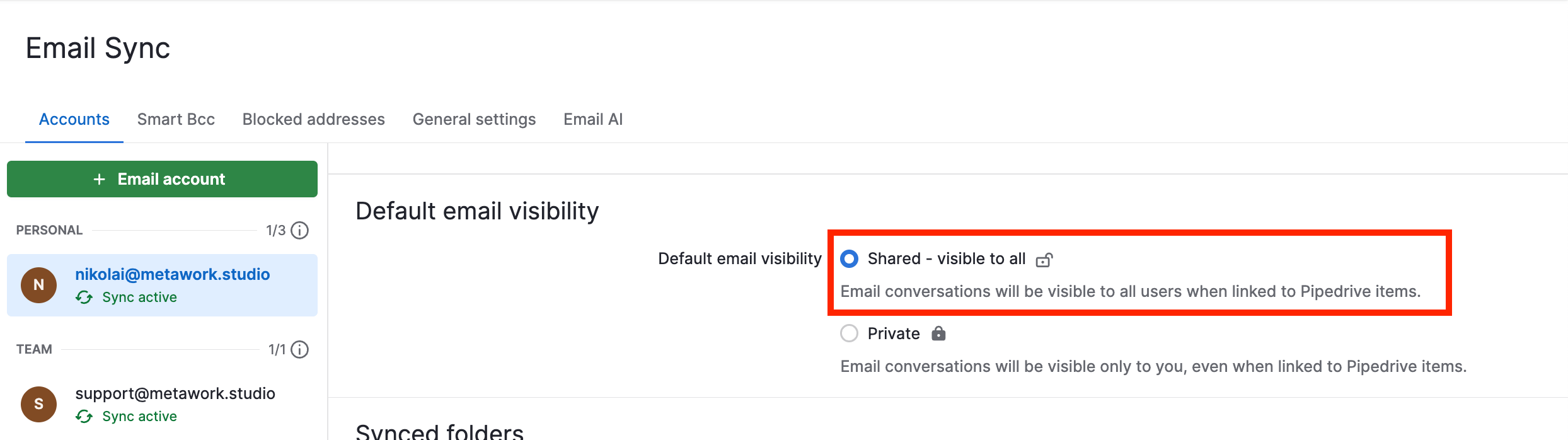
Email: Personal preferences → Email sync → Add account. Connect Outlook or Gmail and choose Sync all folders, including sent and archived messages. Set your default email visibility to Shared (visible to the team when linked to a contact or deal) or Private.
Calendar: Personal preferences → Calendar sync. Connect your calendar, choose two-way sync, and select which CRM activity types appear in your calendar.
Create an activity type named Blocker under Company settings → Activity types. In Calendar sync → Converting external calendar events, assign incoming events to Blocker. External calendar blocks stay separate from sales calls and follow-ups, ready to filter or automate separately.
In-depth article
Email: Settings → General → Email. Connect your Google Workspace or Office 365 inbox and enable inbox automation. Set your default log and track rules for your sales domains, and exclude internal and private domains from logging.
Calendar: Settings → General → Calendar. Connect your Google or Office 365 calendar and enable calendar sync. Review which meetings are logged to contacts and deals. This connects your availability and CRM meetings. It does not turn every private calendar block into a sales task.
4. Replace your inbox with an 08:00 morning call queue
Level 1: open Activities and Sales Pulse first. Complete or reschedule due activities. Every active deal needs one accountable owner and a dated next activity.

In-depth articles
Level 2: bring deal history, last call notes, and emails together in Claude or ChatGPT with MetaPipe. Set up a scheduled morning task for weekdays at 08:00.
What you type in Claude / ChatGPT
Every weekday at 08:00 (using the timezone from my connected calendar or system settings), use MetaPipe to line up the 3 to 4 Pipedrive deals most likely to move revenue today, with phone numbers, deal history, last call notes, and recent emails. Draft follow-up emails for stalled deals and flag open deals without a dated next activity. Keep every email as a draft for my review.
What happens in your CRM
A short call queue with context, follow-up drafts, and missing next activities ready for your morning routine.
Check that your scheduled task can use MetaPipe. If your AI app cannot use connectors in scheduled tasks, run the saved prompt manually or use a supported scheduler.
Level 1: open the Sales Workspace task queue first. Complete or reschedule due tasks. Every active deal needs an accountable owner and a dated next activity.

Level 2: bring deal history, last call notes, and emails together in Claude or ChatGPT with MetaHub. Set up a scheduled morning task for weekdays at 08:00.
What you type in Claude / ChatGPT
Every weekday at 08:00 (using the timezone from my connected calendar or system settings), use MetaHub to line up the 3 to 4 HubSpot deals most likely to move revenue today, with phone numbers, deal history, last call notes, and recent emails. Draft follow-up emails for stalled deals and flag open deals without a dated follow-up task. Keep every email as a draft for my review.
What happens in your CRM
A short call queue with context, follow-up drafts, and missing follow-up tasks ready for your morning routine.
Check that your scheduled task can use MetaHub. If your AI app cannot use connectors in scheduled tasks, run the saved prompt manually or use a supported scheduler.
5. Lock in the daily habit
Spend 15 minutes each morning on your queue. Your AI connector helps with the preparation. Your team owns the next action.
Ready to run this in your CRM today?
Connect Pipedrive to Claude or ChatGPT through MetaPipe and run every prompt in this playbook on your live pipeline. Try MetaPipe free for 30 days.
Connect HubSpot to Claude or ChatGPT through MetaHub and run every prompt in this playbook on your live portal. Try MetaHub free for 30 days.