 Metabrain
 MetaPipe
 MetaHub
 Pipedrive
 HubSpot
 Make & Integrations
 Company Brains (MCP)


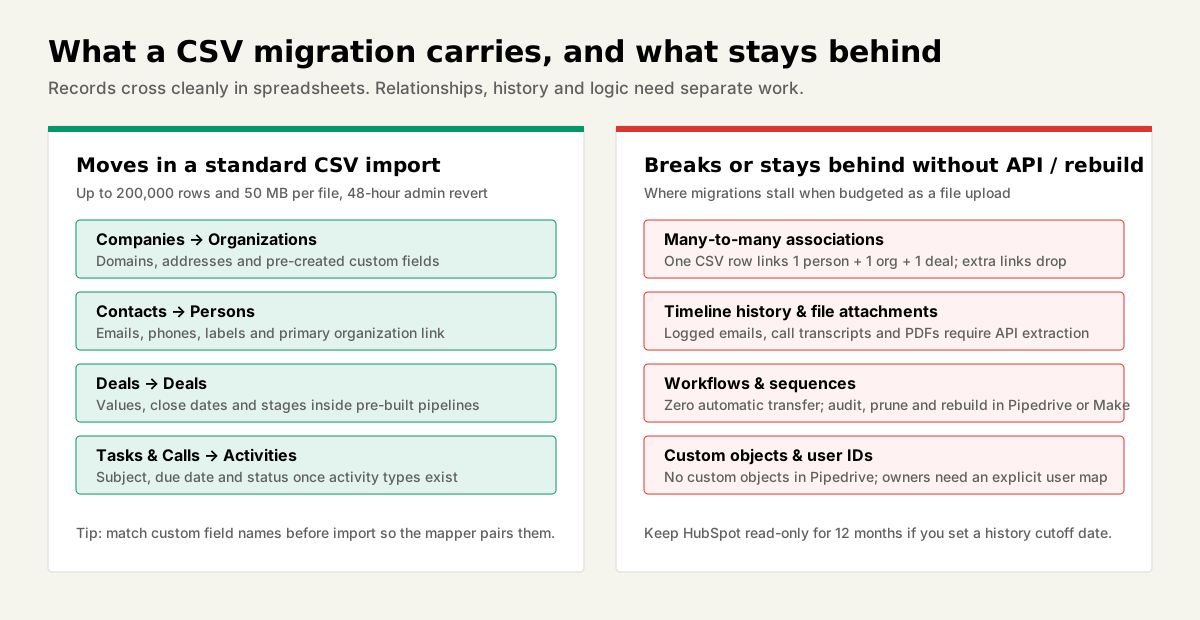
A HubSpot to Pipedrive migration moves your records easily. Contacts, companies and deals come across in a CSV with no drama. What does not come across is everything around them: associations, activity history, attachments, workflow logic and owner mapping.
So budget the project as “rebuild the operating model, then move the rows”. The CSV carries your records. It does not carry your relationships, your history or your automation, and that is where failed migrations fail.
What Pipedrive’s own guide covers, and what it leaves out
Pipedrive’s official migration guide covers the record import well. It was last updated on 23 September 2026 and walks through export, mapping and import order. It does not mention attachments, workflows or custom objects at all.
The mechanics it does cover are solid:
- HubSpot exports each object type separately (contacts, companies, deals) as CSV from the list view, and emails you the file.
- Pipedrive imports XLS, XLSX and CSV up to 50 MB and 200,000 rows per file (if you want the full breakdown of Import2 vs spreadsheets vs API, see our Pipedrive import guide).
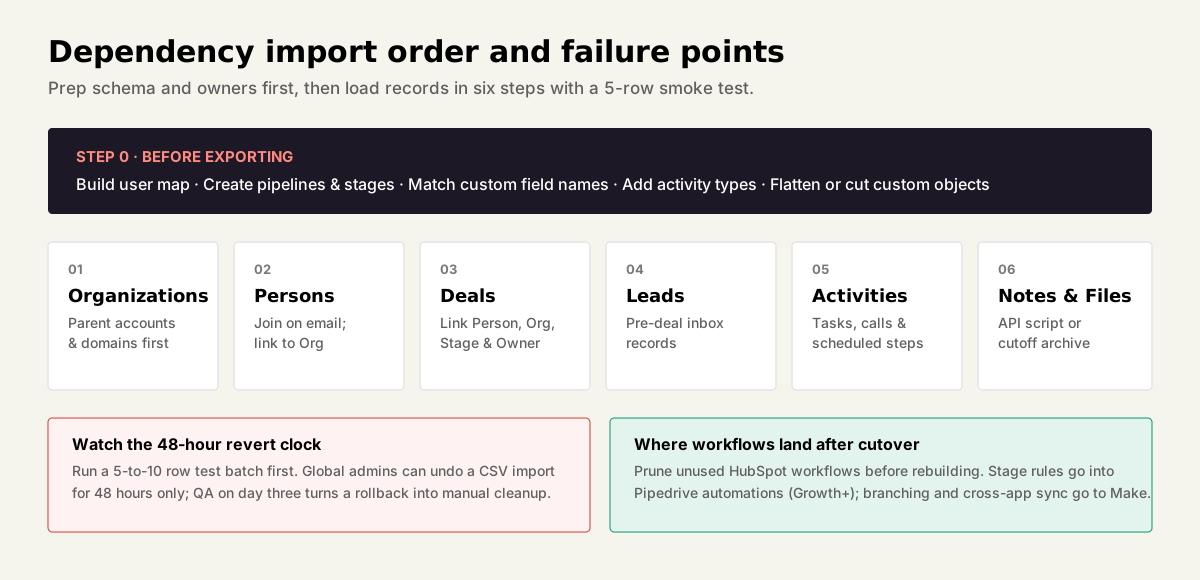
- Recommended order: Organizations, Persons, Deals, Leads, Activities, then Notes.
- Run a test import of 5 to 10 records first.
- A global admin can revert an import from the import history within 48 hours.
That 48-hour window matters. If your QA happens on day three, a bad import becomes a cleanup project instead of an undo.
The mapping table
Most HubSpot objects have a direct Pipedrive equivalent. Two do not, and those two decide how hard your project is.
| HubSpot | Pipedrive | Migration note |
|---|---|---|
| Company | Organization | Direct. Import first |
| Contact | Person | Direct. Email is the reliable join key |
| Deal | Deal | Direct. Stages must exist in a pipeline before import |
| Deal stage | Stage | Recreate by hand. Stages live inside pipelines |
| Task, call, email | Activity | All three become activities. Add missing activity types first |
| Lead | Lead or Person | Pipedrive Leads sit in the Leads Inbox before they become deals |
| Custom property | Custom field | Create with identical names so the mapper matches them |
| Tag | Label | Labels exist per entity: person, organization, deal, lead |
| Marketing contact | No equivalent | Set marketing status yourself after import |
| Custom object | No equivalent | Collapse into custom fields, or leave it behind |
| Workflow, sequence | Automation | Does not transfer. Rebuild |
Five things that break, and the fix for each
Every item below sits outside what a plain CSV import handles. Plan each one before the first export.
Associations. One row in a CSV links one person to one organization and one deal. HubSpot portals rarely stay that tidy. On a recent migration for a mid-sized B2B equipment supplier, almost every deal was associated with two companies in HubSpot: the end buyer and the regional installation partner, plus three or four contacts across both. A flat CSV import kept the primary buyer and silently dropped the partner link and secondary stakeholders. Where deals carry multiple companies or participants, import in strict dependency order, model secondary company roles explicitly with custom fields or organization relationships, and attach additional deal participants through the API.
Notes, call logs and email history. Pipedrive treats notes as an optional last import step. Getting historical call logs and logged emails out of HubSpot in a clean, linked shape is your problem. Either extract them through the HubSpot API and attach them to the matching Pipedrive records by external ID, or set a clear history cutoff date and keep a single read-only HubSpot seat for 12 months.
File attachments. A CSV cannot carry files, and Pipedrive’s guide does not mention them. Pull signed quotes and specs in bulk through the API and re-attach them, or archive them into shared Drive or SharePoint folders and write the folder URL onto a custom deal field.
Workflows and sequences. Nothing transfers. List every active workflow before touching data. On a typical 10-to-25-seat portal we audit, 40 to 60 workflows sit switched on, and fewer than a dozen still match how the sales team actually sells. Cut the dead ones first. Simple stage-change rules move into native Pipedrive automations. Anything with branching, webhook lookups or accounting handoffs moves to Make.
Owner mapping. HubSpot users and Pipedrive users are separate accounts with separate internal IDs. Build an explicit email-to-owner map before the first import, including deactivated reps who still own historical won deals (see our guide to handling deactivated users in Pipedrive). An unowned active record breaks every downstream automation that triggers on deal owner.
The custom object question
Pipedrive has no custom objects. Not on Ultimate, not as an add-on. If your HubSpot setup leans on them, that data has to collapse into custom fields on Person, Organization or Deal.
Decide this before you export. A custom object with a one-to-one link to a deal, such as an onboarding checklist or financing application, flattens fine into deal fields or a Pipedrive Project. A custom object with many records per company, such as installed machines, active subscriptions or multi-site locations, does not flatten cleanly. When a B2B team relies on five or ten child records per customer account, that is the moment to ask whether leaving HubSpot makes sense at all.
What it costs: a 10-seat example
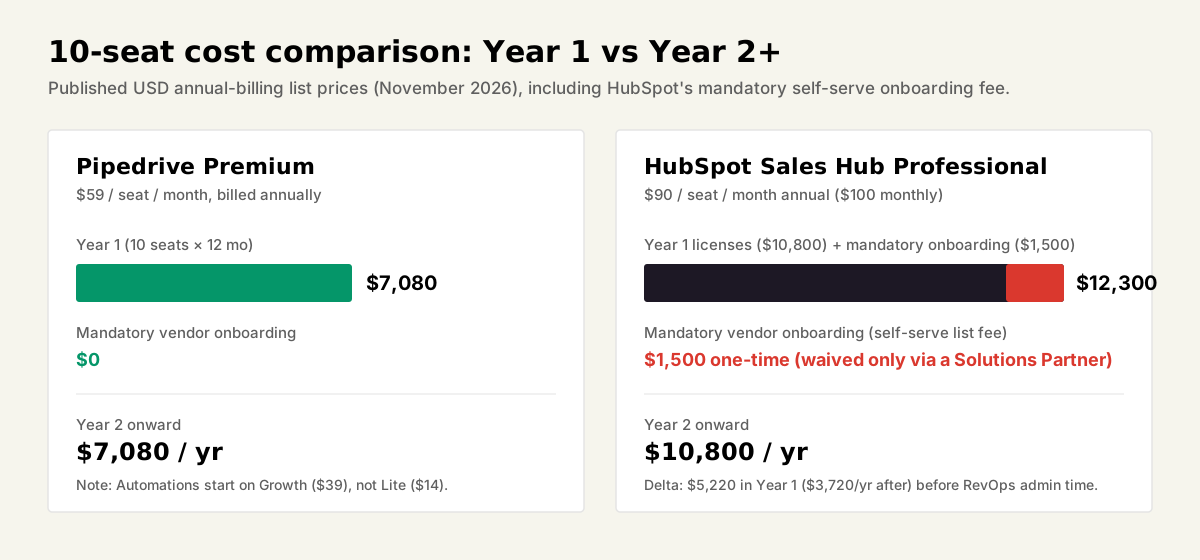
On published list prices, Pipedrive Premium costs roughly 42 percent less than HubSpot Sales Hub Professional in year one. Here are the US-dollar annual-billing list prices published on both vendors’ pricing pages as of November 2026 (regional EUR and GBP pages vary slightly, so check your local currency before budgeting).
| Cost item | Pipedrive Premium | HubSpot Sales Hub Professional |
|---|---|---|
| Per seat per month, billed annually | $59 | $90 |
| 10 seats, 12 months | $7,080 | $10,800 |
| Mandatory vendor onboarding fee | $0 | $1,500 |
| Year one list total | $7,080 | $12,300 |
| Year two onward | $7,080 | $10,800 |
That is $5,220 saved in year one and $3,720 per year after, or even more if HubSpot is billed monthly at $100 per seat.
Where does that $1,500 onboarding line come from? HubSpot charges a mandatory one-time $1,500 Sales Hub Professional onboarding fee on self-serve purchases ($3,500 on Enterprise), listed directly on its Sales Hub pricing page. HubSpot only waives that vendor fee when you buy through a certified HubSpot Solutions Partner, in which case you pay for the partner’s implementation instead. Pipedrive charges no mandatory vendor onboarding fee on any tier.
Two details change the math in practice:
- Pipedrive workflow automations start on Growth ($39), not Lite ($14), so Lite is never a like-for-like replacement for Sales Hub Pro.
- HubSpot’s deeper engine assumes someone maintains properties, permissions and workflows. If that admin work eats a day a week on your payroll, include that time in the comparison.
When not to migrate
Do not migrate if HubSpot is doing marketing work that your pipeline depends on. Pipedrive is a focused sales CRM. If your marketing automation, landing pages, forms and multi-touch attribution all run inside HubSpot Marketing Hub today, pulling sales out splits your funnel in two and costs more in sync maintenance than you save on seat licenses.
Stay on HubSpot if any of these is load-bearing:
- Marketing Hub nurture workflows that qualify and score leads before sales sees them.
- Custom objects with many child records per company.
- Cross-object reporting, such as revenue by contract type and region.
- An internal RevOps owner who already keeps the portal clean and adopted.
Move to Pipedrive if:
- Your team uses HubSpot as a deal board and contact book, and little else.
- Reps avoid logging calls and stage updates because every screen takes too many clicks.
- Your renewal quote jumped after promotional discounts expired and nobody can name what the higher tier buys.
- Marketing already runs outside HubSpot, or outbound and referrals drive most deals.
Our verdict
Migrate when HubSpot is an expensive pipeline. Stay when it is your marketing system. In between, custom objects decide: if they flatten cleanly into fields, move; if they do not, stay and simplify the HubSpot portal instead.
If you do move, run it in this order:
- Build the user map, pipelines, stages and matching custom fields first.
- Inventory active workflows and cut everything the team outgrew.
- Import records in dependency order, starting with a 5-record test batch inside the 48-hour revert window.
- Migrate history and attachments last via API, or set a clean cutoff date and keep minimal read-only HubSpot access for 12 months.
We build and migrate on both sides of this table as a certified Pipedrive Partner and a HubSpot Solutions Partner, so we have no reason to push you into a switch that will hurt six months later. Complex HubSpot workflows usually land cleanly in Make. And if your reps rely on AI assistants inside HubSpot today, MetaPipe gives Pipedrive governed AI access with playbooks, deduplication and audit trails so switching CRMs never costs you your AI workflow. Talk to us before your HubSpot renewal notice locks in.
Sources: Pipedrive: HubSpot to Pipedrive migration, Pipedrive: Importing data with spreadsheets, Pipedrive pricing, HubSpot Sales Hub pricing